Hook up an OBD2 scanner by finding the vehicle's diagnostic socket, following the exact tool's connection and ignition instructions, and confirming that communication succeeds. A plug that fits or a display that turns on is only part of the process.
The reader must also support the vehicle and the function you intend to use. For a phone-based setup, the app-to-adapter link is another separate stage.
Start with a parked, secured vehicle and a simple read-and-record objective. Do not clear codes merely to test whether the connection works.
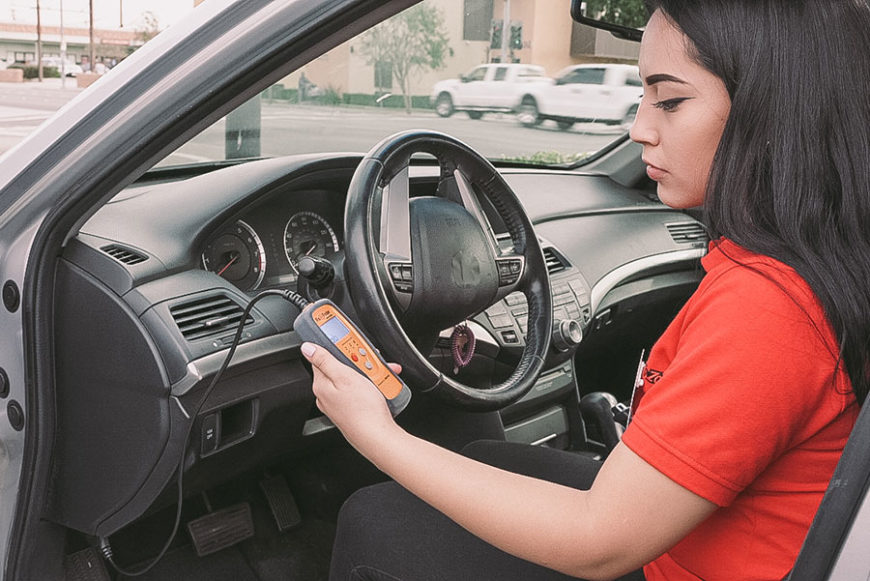
Credit: www.autozone.com
Know which equipment you are connecting
Identify the exact model and obtain its supplied manual. A wired reader, wireless adapter and workshop tablet have different setup requirements. Avoid combining instructions from several products because they all use an OBD socket. The correct guide should match the hardware label and, where relevant, its software revision.
Define the first information request
A first connection should answer a modest question, such as whether supported diagnostic records are available. Do not begin with programming or an unfamiliar service function. The EPA’s OBD guidance explains the emissions-information role behind generic scanning. Broader functions require their own confirmed coverage.
Use the socket for its intended purpose
The diagnostic outlet is an interface to vehicle systems, not a place for improvised electrical experiments. Do not bridge contacts or insert metal probes to make a scanner work. If the port appears damaged, stop and obtain the appropriate assessment instead of forcing a connection.
Separate handheld and app-based setup
A handheld reader may display results directly. A wireless adapter needs compatible software and a supported phone connection. A laptop interface has its own drivers and application requirements. Identify the complete chain before starting so a missing app or unsupported operating system is not mistaken for a vehicle problem.
Verify coverage before plugging in
Use year, model, engine and market information to check the manufacturer's support. OBDLink’s compatibility guidance illustrates why a general OBD claim does not establish every vehicle or module. Ask about the exact task if it goes beyond generic engine information.
Prepare a useful first session
Have a place to record the results and a short description of the symptom. Note recent repairs, battery work and earlier code clearing. These details help explain the record and reduce the temptation to repeatedly reset the vehicle just because the first screen is unfamiliar.
Preserve the initial code record
If a warning is present, the first successful read can capture information that may later change. Save the full identifiers and statuses. A count of codes is not enough for a repair discussion. Do not assume a code is a confirmed failed component simply because its description includes a part name.
Avoid premature parts spending
The purpose of connecting is to obtain evidence, not to select a replacement immediately. A code can narrow the next test while leaving several possible causes. Ask what would confirm the suspected cause. The reader can improve a decision without completing the entire diagnosis.
Keep measurements in context
If live data is used after connection, retain the parameter label, unit and vehicle state. A value with no context can be misleading. A zero can be legitimate for one condition and suspicious in another. An unsupported item should remain unavailable rather than being interpreted as a measurement.
Do not override serious symptoms
A successful link does not make an unsafe vehicle safe to operate. Follow the owner's manual for a severe warning, overheating or other urgent symptom. You do not need to continue driving merely to obtain a code. Appropriate assistance may be the next step before any further scanning.
Treat emissions information as one part of vehicle care
Generic OBD data can support emissions-related diagnosis and readiness checks. It does not replace ordinary maintenance or physical inspection. A clean engine-code screen does not establish tire condition, brake integrity or the absence of every mechanical problem. Keep that limitation in mind before relying on the result.
Make setup easy to repeat
Record which manual and connection method were used successfully. If another person uses the tool later, that record prevents confusion between app settings or ignition states. A consistent starting method also makes genuine connection changes easier to identify after a phone, software or vehicle update.
Check the complete compatibility chain
Vehicle support, interface support and software support must align. A device that works with one app may not work with another. A supported phone operating system can also matter. Confirm these requirements before assuming the vehicle is at fault when a connection attempt fails.
Use the actual vehicle configuration
Do not rely only on a model name shared across many years. Engine type and original market can affect the available diagnostic route. For an imported or older vehicle, obtain specific confirmation. A matching connector shape alone does not answer the compatibility question.
Choose the necessary function
If your concern is in ABS, restraints or another non-engine system, ask whether the tool explicitly supports it. Generic emissions access should not be described as a full-system scan. A missing function may be a normal tool limitation rather than a defective module.
Include setup requirements in the purchase decision
A low-priced adapter may still require software, a compatible phone or additional coverage. Check those requirements and support options before purchase. If one specialized assessment is needed, a workshop service may be a more direct route than assembling an unsuitable setup and hoping for access.

Credit: www.youtube.com
Find the diagnostic outlet using vehicle information
The socket is commonly near the driver's lower dashboard, but the exact location and access method vary. Use the owner's documentation or a reliable manufacturer reference. Do not pull trim or wiring simply because the expected location is not immediately visible.
Look carefully before connecting
Use adequate light to identify the socket. Check its orientation and any protective cover.
Do not confuse another connector with the diagnostic outlet. If access is cramped, position yourself safely with the vehicle stationary.
Do not reach around the pedals while someone could operate them.
Respect the documented access method
A cover may need to be opened or removed as instructed. Avoid forcing clips or loosening unrelated harnesses.
If the manual does not make the location clear, ask for the correct reference.
Guessing at a connector is not a reasonable substitute for identifying it.
Follow the exact connection sequence
The Innova 5010 instructions begin with ignition off before the reader is connected. That is a documented example, not a universal sequence for every product. Your tool and vehicle instructions govern the actual order, including when to switch the ignition on or start the engine if needed.
Insert the plug by its body
Align the connector and seat it normally without pulling on the lead or forcing it sideways. Stop if resistance is abnormal. A damaged plug or socket should be assessed before further use. Route the cable so it cannot become trapped in the door or interfere with pedals.
Confirm both power and communication
A lit screen indicates power to some part of the setup. Look for the tool's successful vehicle-link indication before interpreting data. If it remains in a searching or error state, preserve the message. Do not treat a powered display as proof that the vehicle has been scanned.
Read the first result carefully
Confirm that the vehicle information and selected mode are appropriate. Save codes, statuses and any relevant event data before changing anything. If the result is blank, determine whether it means no records were retrieved, a function is unsupported or communication did not complete.
Use full code definitions for the actual vehicle
An abbreviated screen description can omit diagnostic context. Keep the complete identifier and consult the appropriate service information. A sensor or circuit name is not a replacement instruction. The next test should distinguish possible causes rather than assume the named component is faulty.
Use the reader manual for screen meanings
The tool documentation explains status labels, navigation and saved-data behavior. The vehicle documentation supplies application-specific procedures. Keep those roles separate. A scanner's sample screenshot should not be treated as the correct value or required fuse location for your car.
If the connection fails, classify the stage
A dark device, an adapter the phone cannot discover and a tool with no ECU response are different failures. Record which stage was reached. This prevents repeated app pairing when the unresolved problem is actually vehicle communication, or unnecessary vehicle work when the phone setup is unsupported.
Check documented prerequisites first
Verify the specified ignition state and normal connector seating. Confirm the supported vehicle and app configuration. Use only the manufacturer's safe retry process.
If the problem persists, seek help rather than changing random protocols or probing diagnostic pins. A repeated failure needs evidence, not increasingly forceful attempts.
Keep unavailable data separate from faults
A missing parameter may be unsupported. A missing system menu may reflect coverage.
A no-code result applies only to the queried path. None of these automatically proves a defective controller.
Describe the exact screen and tool model to support so the limitation can be assessed accurately.
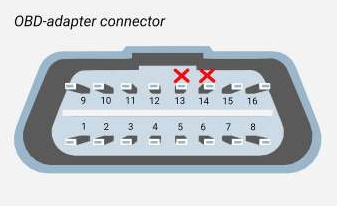
Credit: motordata-obd.com
Save a repeatable session record
Keep the vehicle, date, mileage, tool and connection method with the result. Note whether the engine was stopped or running and whether any records were cleared. That makes later comparisons meaningful and helps a repairer understand what the first scan actually established.
Use maintenance checks for a reason
Follow the vehicle service schedule rather than replacing it with casual scans. When a warning or symptom prompts a check, preserve the evidence and obtain the required diagnosis. FTC repair guidance supports asking for a clear explanation of proposed work and its cost.
Keep software changes targeted
Use official update channels and preserve reports before changing the app or firmware. Car Scanner’s configuration guides provide separate routes for supported wireless types. An update may help a documented software issue, but it cannot correct a damaged connector or unsupported hardware.
End the session as carefully as it began
Save the result, exit through the documented workflow and disconnect under the required conditions. The disconnection guide explains why ordinary reading differs from active programming.
The troubleshooting guide separates power, communication and coverage issues. A successful hookup means a supported link with an understood result, not merely a plug in a socket or a warning that has been erased.


Automotive reference information. Confirm specifications in the manual for your exact vehicle. Original replacement guides link to their research sources. About us