Resetting an OBD2 scanner can mean restarting the device, restoring its settings, deleting saved reports or commanding the vehicle to erase faults. Those actions have different consequences.
If your scanner freezes or uses the wrong language, start with its device instructions rather than selecting an erase-codes command. The objective is to restore the tool's operation while preserving the vehicle's diagnostic evidence.
Identify the exact model and software revision first, then use the least disruptive documented action that addresses the observed problem.
Define what needs resetting
Write down the symptom before touching a reset menu. A frozen screen, incorrect unit selection, failed wireless connection and recurring vehicle code are four separate problems. A general factory reset may not solve any of them efficiently, and a vehicle fault should not be treated as corrupted scanner settings.
A restart does not validate a diagnosis
Restarting can restore a responsive interface, but it does not prove that previous readings were accurate or inaccurate. If you suspected stale data, begin a new session and confirm that values update. Keep the old report identified as a separate capture rather than silently replacing it with a later result.
Distinguish slow operation from a fault
A tool requesting many parameters may refresh slowly without being frozen. Check whether navigation still works and whether timestamps change. Reduce the selected data set if the instructions support that approach. A smaller, relevant capture can answer the diagnostic question without repeatedly restarting otherwise functioning equipment.
Do not erase vehicle warnings by accident
A menu named erase, clear DTCs or reset monitors may act on the vehicle rather than the scanner. Read the confirmation message before proceeding. If it mentions diagnostic information or readiness, stop unless that vehicle action is specifically intended and the initial evidence has already been saved.
An update is a separate operation
A firmware update changes device software; a settings reset may only restore preferences. Neither should be started because a generic article groups them under reset. Follow the manufacturer's recovery instructions when an update has failed, because interrupting or repeating an installation without guidance can make recovery harder.
A recurring code is not a scanner memory problem
If a fresh session retrieves the same vehicle code, the controller may still be reporting that condition or retaining a particular code category. Reinstalling the app does not repair the vehicle. Interpret the code status and diagnostic procedure before deciding whether any erasure is appropriate.
Routine resetting is unnecessary maintenance
There is no benefit in deleting reports merely to make the scanner feel clean before each use. Organise saved sessions by vehicle and date instead. Preserve a before-repair baseline so a later scan can be compared with the original condition rather than a memory of what the display showed.
Gather the information needed for recovery
The useful preparation is primarily informational: model label, revision, current software version, error message and saved reports. Accessories depend on the exact tool. Do not assume every handheld reader needs a computer connection or that every adapter accepts firmware updates from its phone app.
Find the correct manual
The Innova manual catalogue distinguishes products and revisions, illustrating why a brand name alone is insufficient. Use the equivalent official resource for your device. A button sequence copied from a similar-looking scanner may enter a different function or not apply to its hardware at all.
Use the specified data connection
If the documented procedure requires USB, use a suitable cable and the intended port. A cable that provides power may not support the required data transfer. Do not infer a device failure from an update utility that cannot detect a connection until the specified cable requirements have been checked.
Confirm computer requirements before starting
Where a manufacturer utility is required, check its supported operating system and installation instructions. Download it from the official source. A tool that uses an on-device update process may not need a computer at all, so avoid installing unrelated packages in the hope that one will recognise it.
Keep the application identity clear
A phone app, adapter firmware and vehicle profile are separate pieces of the system. Record which one is being reset. Deleting an app can remove local reports or settings without changing the adapter, while changing an adapter setting may leave the phone profile untouched.
Prepare network access only when required
Some update or account-recovery operations require internet access; a simple device restart may not. Confirm the intended procedure before switching networks. In particular, a Wi-Fi diagnostic adapter's local network may not provide internet, which can matter during a software download but not during ordinary local communication.
Use the documented power arrangement
Follow the manufacturer's requirements for power during an update or recovery. Do not substitute an improvised supply or assume any charger is suitable. If vehicle power is required, the battery condition and specified support arrangements matter; if USB power is specified, follow that instead.
Avoid opening the scanner
A frozen menu is not a reason to dismantle the housing, bridge contacts or search for undocumented internal reset points. Those actions can damage the device and create an electrical hazard. Use the published support process when normal controls and documented recovery steps do not restore operation.
Save evidence before changing settings
Export reports and note customised vehicle profiles, units and connection settings. Check that exported files actually open. A file list alone is not a verified backup, and a factory reset may remove exactly the settings needed to explain why the original session failed.
Check the immediate power symptom
If the screen flickers or the device repeatedly reboots, a settings reset may be irrelevant. Inspect the normal connection and follow the manual's power checks. Stop using damaged cables or connectors. Do not force a diagnostic plug or alter vehicle fuses simply to keep the scanner powered.
Finish active operations first
Do not disconnect or restart a tool during an update, programming operation or other active service procedure. If the screen appears stuck during such an operation, follow the manufacturer's recovery guidance. The familiar unplug-and-retry approach appropriate to some read-only sessions may be harmful during a write operation.

Credit: www.amazon.com
Restart using the exact model procedure
When only a read-only session is affected, exit it if possible and use the documented shutdown or restart control. Follow instructions about ignition state and cable removal. After restarting, begin with identification and a fresh read operation so the new session can be distinguished from saved playback.
Locate settings rather than vehicle service commands
Read the menu heading and confirmation text carefully. Device preferences commonly concern language, units, display or communications; vehicle commands concern controllers and diagnostic records.
The wording differs between products, so the category distinction is more reliable than assuming a particular button always means a harmless reset.
Read what the reset will remove
A factory reset may delete stored reports, account details or customised settings, depending on the product. Confirm those effects in the manual before accepting.
If the documentation does not explain the option, ask manufacturer support.
Guessing is especially unhelpful when the missing data may be needed to diagnose the original vehicle complaint.
Advanced recovery belongs to the manufacturer procedure
An unresponsive device or failed update may require a specific recovery mode. Use instructions tied to the exact model and revision. Do not combine steps from different products or run an unofficial firmware file because its name appears similar; compatibility cannot be established by filename alone.
Restore defaults only when justified
Use a full settings reset when the documented troubleshooting path calls for it and the saved-data consequences are understood. Reconfigure deliberately afterward.
Re-entering every old setting immediately can reproduce the same configuration issue, so establish a basic supported connection before restoring optional customisation.
Verify the update before reconnecting
If recovery involved software installation, check the reported version and completion status. Keep the installation result for support if the problem persists.
A successful download is not necessarily a completed installation.
Follow any required restart and do not assume that a progress indicator disappearing means the device is ready.
Test the original symptom
After recovery, repeat the simplest operation that previously failed, such as opening settings or reading a supported vehicle identifier. Avoid adding several new changes at once. If the tool now works, record what restored it; if it still fails, the comparison provides useful evidence for support.
For wireless failures, isolate the connection layer
Determine whether the phone can see the adapter, whether the app recognises it and whether the vehicle answers. Resetting all three layers at once obscures the cause. Use the Wi-Fi scanner connection guide when the failed stage is specifically a Wi-Fi link.
Preserve the exact error wording
Photograph or copy the error, including any code or version information. Saying the scanner does not work is much less useful than identifying where it stopped. Include whether the same issue occurs on the supported vehicle with a fresh read-only session, without suggesting that multiple unrelated cars should be used as experiments.
Understand adapter reset versus vehicle erasure
The ELM327 datasheet describes an interpreter between diagnostic communication and a serial interface; adapter configuration and vehicle diagnostic requests are distinct operations. This distinction matters even when a consumer app hides the underlying commands. Use documented app controls rather than sending arbitrary terminal commands to a connected vehicle.
Keep known-good settings documented
Once a supported connection works, note the app version, transport and vehicle profile. This is particularly useful when the phone serves multiple adapters. A short record avoids repeated factory resets caused by selecting the wrong profile or confusing a previous adapter with the current one.
Store the tool and reports separately
Protect the hardware according to its instructions and keep important reports backed up elsewhere. A device failure should not destroy the only record of an intermittent fault. Disconnect or store the adapter as the manufacturer recommends rather than assuming it must remain plugged into the car between uses.
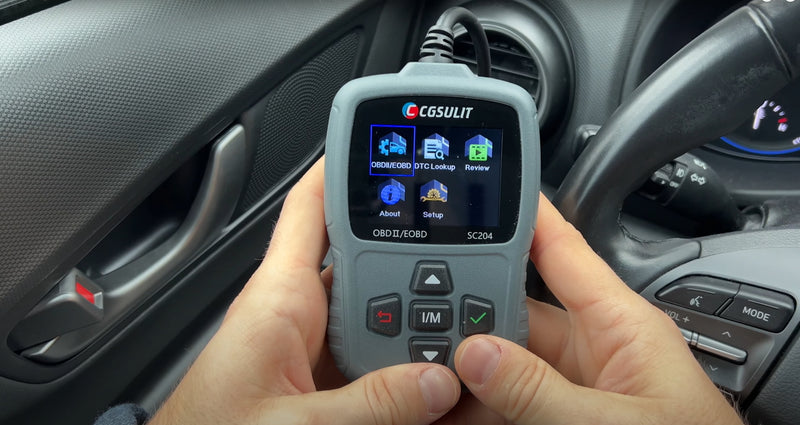
Credit: www.cgsulitstore.com

Credit: www.youtube.com
A scanner reset should solve a scanner problem
Use restart, settings restoration or recovery only for the device issue each operation addresses. Vehicle code clearing is a different decision: BAR’s OBD reference explains that permanent-code behaviour is not controlled by ordinary clearing.
Preserve the evidence, verify the recovered tool and return to diagnosis without pretending that a reset repaired the car.


Automotive reference information. Confirm specifications in the manual for your exact vehicle. Original replacement guides link to their research sources. About us