Use BlueDriver with the supported BlueDriver sensor and application, confirm the vehicle connection and save the initial diagnostic report before clearing codes. The most useful distinction is between what the vehicle reported and what a repair report suggests might explain it.
A suggested fix is not confirmation that the named component failed. Check the exact hardware generation and current vehicle coverage before relying on enhanced modules or service features.
This guide uses the published BlueDriver Pro setup information as a reference and avoids assuming that every BlueDriver-branded product has identical capabilities or account requirements.

Credit: www.amazon.com
Identify the sensor and current setup instructions
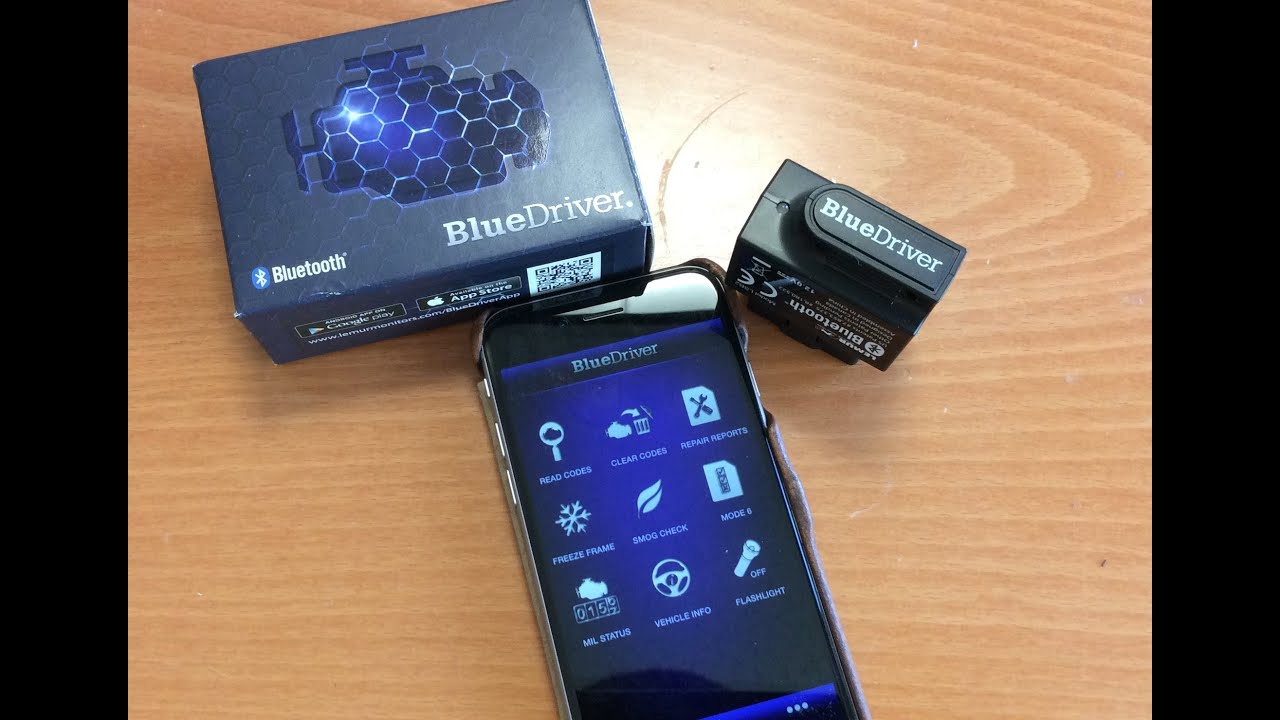
Read the device label and distinguish your hardware from other BlueDriver versions. Use the matching product support information rather than a tutorial for a different generation. The application can evolve, so a current setup prompt may differ from an old video. Record the app version if you are troubleshooting or comparing reports from different sessions.
Verify the vehicle and phone combination
Check BlueDriver's current compatibility information for the exact vehicle and the function you want. Generic engine access and enhanced module coverage are not the same promise. A phone that runs the app does not itself establish that the sensor can retrieve every system on the vehicle, particularly when market or model-year limitations apply.
Install the official app and follow its account flow
Use the official app-store route linked by BlueDriver and follow the current sign-in or account setup prompts. Do not install a repackaged application from an unknown download page. Keep access to your saved reports in mind before changing accounts or deleting app data, because a troubleshooting reset should not remove the only copy of an important scan.
Make the first connection while parked
The BlueDriver Pro setup page describes enabling Bluetooth, using the official app, allowing the relevant connection permissions and connecting with ignition on and the engine stopped. Follow the instructions matching your hardware and phone. On a push-button vehicle, obtain the correct ignition-on state from the owner's manual rather than assuming any illuminated screen means the controllers are ready.
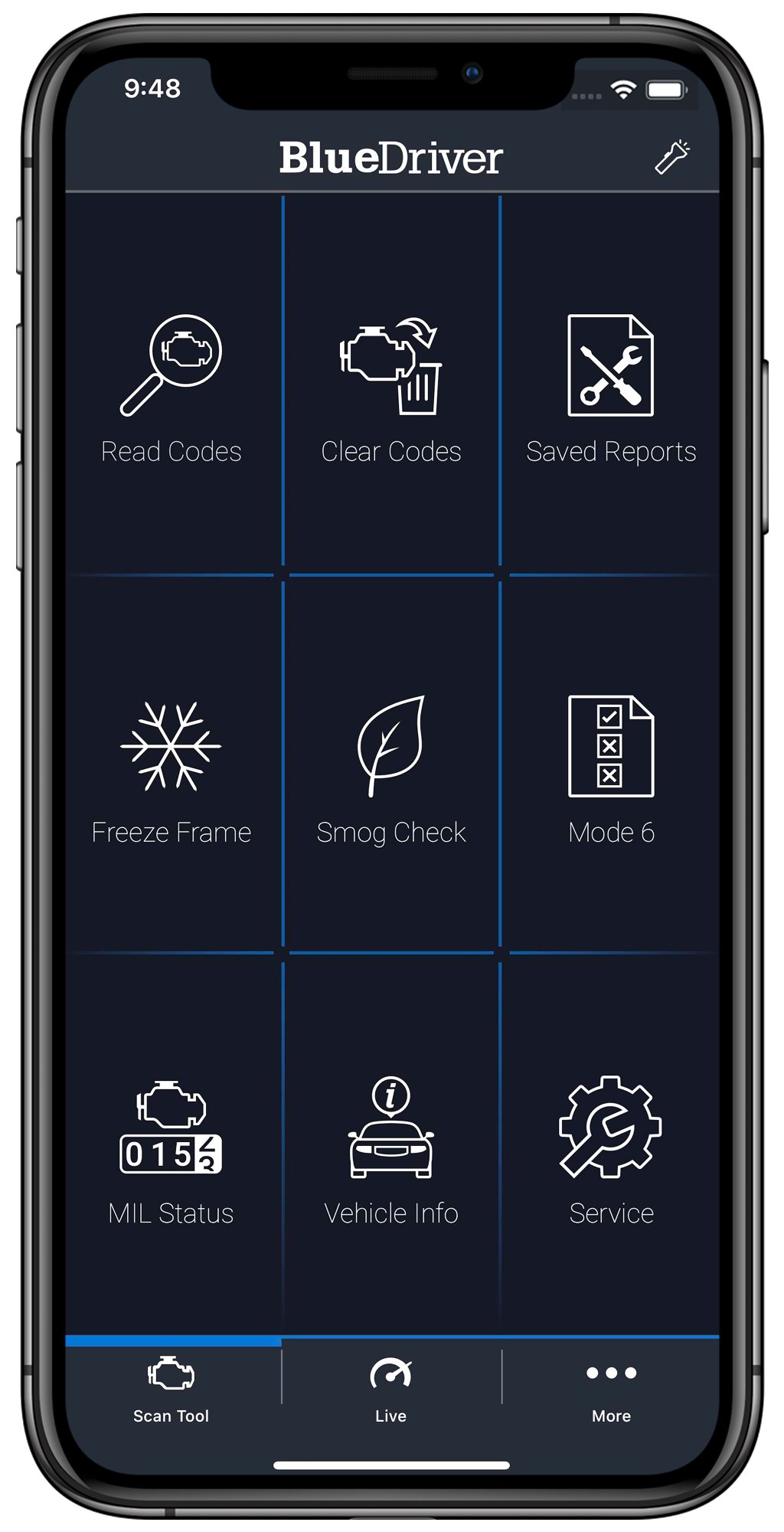
Credit: us.bluedriver.com
Read the app’s connection state carefully
Distinguish sensor detection from a completed vehicle connection. A Bluetooth symbol alone does not establish that the controller has answered. Wait for the app's vehicle identification and review it. If the selected vehicle is wrong, correct that before interpreting code definitions or repair information that may depend on the application.
Know which screen you are viewing
The app can present current scan results, saved reports and other diagnostic views. Check the vehicle and date before reading a result aloud or sharing it. An old report remains useful history, but it should not be described as a current scan simply because it opens immediately in the application.
Review vehicle information before the report
Confirm the model, year and powertrain information requested or detected by the app. If automatic identification is incomplete, follow the supported manual selection process. Do not fill uncertain details by guessing. Incorrect identification can undermine the relevance of definitions or suggested repairs even when the raw code characters were read correctly.
Start with a complete read-only scan
Retrieve the supported report and save it before making changes. Include status categories, module names and any available context. If a warning involves brakes or restraints, confirm that the scan actually reached the relevant controller. An engine-only result should not be used to dismiss a warning from a system outside the completed scan's scope.
Keep full codes and status together
Stored, pending, permanent and manufacturer-specific categories need different interpretation. Save the exact code and any additional detail rather than only its short description. A recurring code after a repair is more useful when it can be compared with the original status and conditions, instead of a memory that the app once mentioned a particular sensor.
Treat clearing as a separate decision
Do not use the clear function merely to complete setup or make the report look normal. Preserve the original evidence and understand why clearing is appropriate in the repair procedure. A successful command does not repair the detected condition, and some retained categories are not subject to ordinary erasure. If the warning returns, investigate rather than repeatedly clearing it.
Use live data to answer one question
Choose a small set of relevant supported parameters and record their units and operating conditions. A warm idle capture and a cold-start capture are different tests.
BlueDriver provides an official live-data setup resource; use the current app instructions for operation, then apply vehicle-specific diagnostic information to interpretation. A dashboard full of gauges is not automatically more informative than a focused recording.
Separate added features from confirmed conclusions
Additional reports and data views can make evidence easier to organise, but they do not bypass the need to test a cause. Before using an unfamiliar function, establish whether it merely displays information or sends a command. Keep coding, resets and other active operations outside a casual first scan unless the exact vehicle procedure calls for them.
Read repair reports as possible explanations
A repair report can present causes and reported fixes relevant to a code, but your vehicle still needs evidence that distinguishes them. Ask what test would support the suggested repair and what alternative could produce the same report.
Do not replace several listed parts in sequence just because each appears among common fixes. The report is most useful as a planning aid, not a diagnosis certificate.
Interpret the smog-check view within local rules
Readiness indicates whether applicable monitors have completed, not whether every physical component has been independently inspected. The California BAR reference explains readiness and permanent-code considerations for its jurisdiction.
Use the inspection requirements where the vehicle is registered. Do not promise that a green app display guarantees an official pass or that a fixed mileage will complete every monitor.
Freeze frame is a historical snapshot
Treat freeze frame as stored conditions associated with an event, not as a live reading. Save it alongside the relevant code.
Note which parameters are present and avoid assuming the snapshot contains every detail needed to reproduce the complaint.
A temperature or speed in that record describes the captured event and should not be called the vehicle's current condition.
Keep versions and reports organised
Record app and sensor information when a problem is repeatable. Save before-repair and after-repair reports separately. If you contact support, include the exact error and the stage at which it appears. This lets support distinguish an account or application problem from sensor communication or a vehicle-side issue.
Use the official support route for updates
The BlueDriver support centre provides product help and current troubleshooting resources. Follow the documented update process for the identified sensor. Do not interrupt an update or install a file offered for another adapter because its casing looks similar. If recovery is required, use the manufacturer's instructions rather than repeated uncontrolled power cycling.
Protect the adapter and the vehicle connection
Handle the sensor by its body and keep the diagnostic socket free of strain. Follow the product and vehicle guidance on disconnecting and storage.
Do not assume an adapter should remain connected indefinitely merely because it is compact. Consider the vehicle's guidance and the device's documented power behaviour.
Credit: www.youtube.com
Troubleshoot one layer at a time
Identify whether the app launches, whether it detects the sensor and whether the vehicle answers. These failures need different checks. Reinstalling the app is not the first answer to every no-link message, and clearing vehicle codes does not fix phone permissions. Keep the original error visible long enough to record it accurately.
When the sensor is not detected
Check the current product instructions for Bluetooth and permission requirements on your phone system. Avoid connecting a different nearby device by name alone. If previous pairing information is relevant, follow BlueDriver's documented steps for that situation. Do not invent a universal PIN or copy a generic ELM327 pairing sequence into a BlueDriver workflow.
When the application closes or behaves inconsistently
Preserve reports before resetting local app data or changing accounts. Note whether the issue occurs during startup, connection or a particular report view. Check the official troubleshooting resource for the installed version. A crash does not establish that the vehicle data is wrong, so keep the software issue separate from the automotive diagnosis.
When a reading looks implausible
Verify that it is a fresh supported parameter, check the units and identify the operating condition. Compare like with like rather than using a universal normal value from an unrelated engine. The live-data guide explains how to frame a useful comparison and why a calculated field is not an independent physical measurement.
Use BlueDriver to preserve evidence and choose tests
A successful session leaves you with the correct vehicle identity, complete codes, relevant context and an honest account of coverage limits. Use suggested repairs to ask better diagnostic questions, then verify the actual cause.
After repair, retain the follow-up report separately and assess the original symptom under the required conditions rather than declaring success because the app briefly shows no codes.


Automotive reference information. Confirm specifications in the manual for your exact vehicle. Original replacement guides link to their research sources. About us