Use a FIXD sensor by following the official setup process for the FIXD app and your compatible vehicle, then read and preserve the scan before considering any clearing function. The sensor, phone connection and vehicle diagnostic system are separate parts of that process. Success at one stage does not guarantee success at the next. For example, finding the sensor in the app does not prove that the app has obtained a complete vehicle report. The FIXD setup guide is the primary reference for current installation instructions; app screens can change, so use the wording on your version rather than a screenshot from another release.
This article explains how to organize the session and what to do with the result. It does not assume that a consumer engine-code scan can examine every safety or chassis system. Start with the vehicle parked in a safe place. If the engine must run for the prescribed setup, work outdoors with adequate ventilation, secure the vehicle and keep the phone and sensor clear of the controls.
A warning accompanied by severe running problems, overheating or other urgent symptoms needs the response described in the vehicle manual. Connecting a reader should not delay necessary assistance. Before scanning, note the warning, the conditions when it appeared and any recent repairs or battery work. Those notes make the app report more useful than an isolated code screenshot.

Credit: www.fixd.com
Set up the sensor, then identify which connection needs help
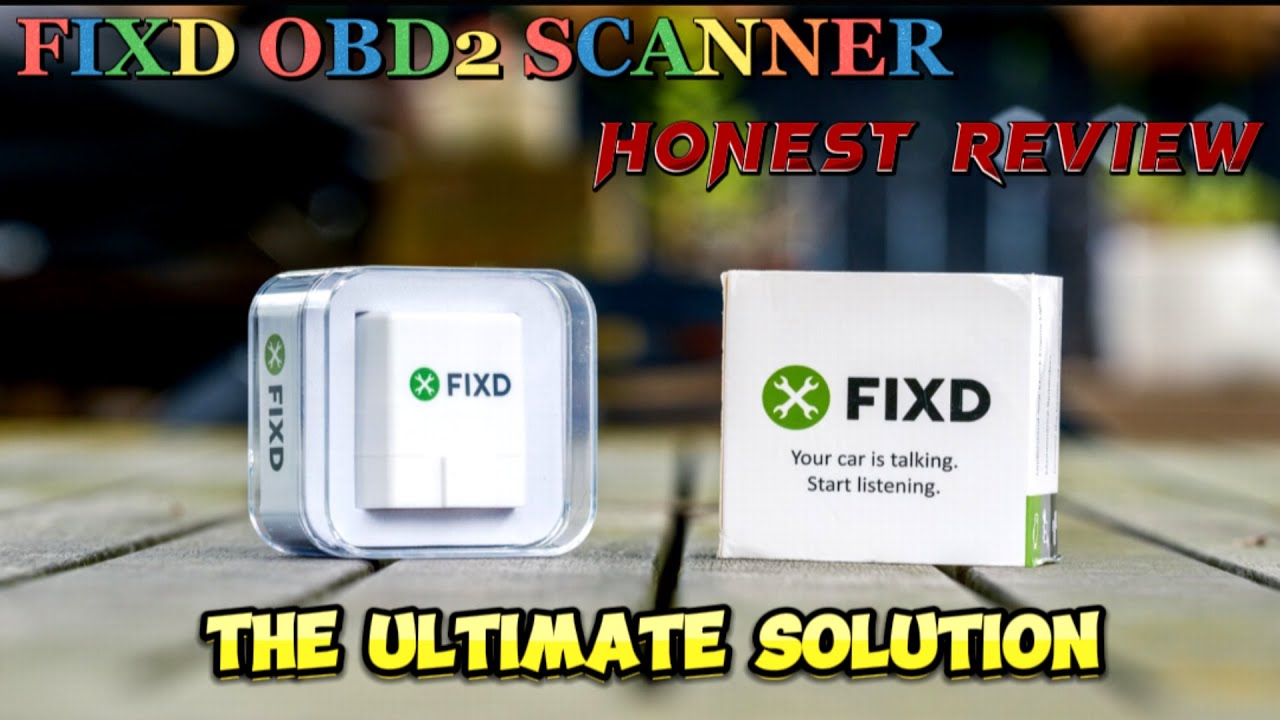
First confirm the exact sensor and vehicle compatibility using FIXD information. Check the year, engine type and market, rather than assuming that a connector shaped like an OBD port proves coverage. Install the genuine app through the official store links supplied by FIXD. Review its current permissions and account requirements before starting. A phone that lacks the required connection or permissions can prevent setup even when the vehicle and sensor are suitable. Keep the app updated and have a reliable data connection available for features that need it. FIXD instructs users to enable phone Bluetooth but to discover the sensor through the app instead of pairing it in the phone's Bluetooth device list. Its guide directs owners to register the sensor, connect it to the vehicle, start the engine and add the detected device in the app. The brief blue indicator at insertion is a power clue. Follow the current guide for the exact prompts and name the sensor so you can identify the correct vehicle later. Do not interpret that brief indicator as a completed diagnostic test. Power, wireless discovery and communication with the vehicle are different events. If the app cannot find the sensor, record that exact message rather than describing every failure as an engine problem. FIXD’s sensor-discovery troubleshooting page addresses an updated app, compatible vehicle, operating state, nearby phone and sensor power. It also describes a connection-type option for some Android devices. That is a product-specific troubleshooting route, not a reason to invent a universal pairing code or apply another adapter's instructions.
Avoid repeatedly trying random PINs or downloading an unofficial app offered by a search advertisement. If the supported process fails, provide FIXD support with the sensor identity, phone model, app version, vehicle details and precise error stage. Do not send account passwords or payment information with a diagnostic screenshot. A successful sensor discovery followed by a communication error points to a different stage than a sensor that never appears. Confirm the vehicle state required by the official workflow and whether the intended vehicle is selected. Check that the connector is fully seated without forcing it. If the port or plug is visibly damaged, stop rather than pushing harder or inserting metal objects to test it. Electrical diagnosis of the connector requires the appropriate vehicle information and equipment. A powered device can still have a communication issue, and a communication issue does not automatically condemn the vehicle computer. Describe what changed between attempts. For example, noting that the app found the sensor after a permission correction but still could not read the vehicle narrows the support question substantially. Changing many unrelated settings at once makes that history difficult to reconstruct. Once a scan is available, save the report with the vehicle name, date and mileage. Read the full code, not just a simplified headline. Keep any status information the app supplies, because an old stored record is not equivalent to a condition that is being detected now. Add your symptom notes to the record.
If the report suggests a possible repair, treat that as a lead that needs confirmation. A code indicates what the monitoring system detected under its own criteria. It does not directly inspect wiring condition, prove a mechanical part is worn out or establish that the first suggested replacement is necessary. The EPA’s OBD material explains the monitoring context behind emissions-related fault information. An owner can use that context to ask better questions without pretending to have performed the diagnostic tests. A useful example is a warning that appears after recent maintenance. The report may identify a system to investigate, but the recent work is also relevant evidence. Tell the repairer what was disturbed and when the symptom began. Do not erase the record before the repairer can compare it with the event. Another example is a warning that disappears before the appointment. Keep the saved report even if a later screen looks clear; intermittent conditions can be difficult to reproduce, and the earlier evidence may help. Conversely, an app reporting no retrieved engine codes does not certify the entire vehicle. A brake, steering or other system concern may require a different tool and a physical inspection. The absence of a generic engine result should not override a warning or a symptom that the app was not designed to evaluate. Before using any erase function, understand what would be lost.
Clearing diagnostic records may remove useful event information and reset readiness monitoring. It does not correct the underlying condition. Texas DPS explains why readiness may be incomplete after such changes and why the appropriate vehicle operating conditions matter. Do not clear a warning to conceal a fault before a sale or inspection. After a confirmed repair, use the correct supported procedure and retain the before-and-after results. A light staying off for a short time is not the same as the vehicle completing all relevant checks. If a code returns, compare the new record with the earlier one instead of repeatedly clearing it. The repeat pattern and operating conditions are more informative than a sequence of temporarily clean screens. Keep paid features and hardware capability separate when deciding whether an upgrade is useful. Read the current app description and subscription terms rather than assuming that paying for advice adds access to every vehicle module. A report, maintenance reminder and direct module measurement are different products. Check whether the function you need is actually supported on your vehicle and whether it requires an additional service. If the aim is to diagnose a persistent symptom, a properly scoped workshop assessment may provide more value than another subscription. The FTC’s repair guidance supports asking for clear explanations and estimates. Bring the saved FIXD information as evidence, while allowing the technician to choose the tests needed to establish the fault.
Credit: www.youtube.com
Build a repeatable record without overinterpreting the app
After the first successful session, organize the result so it remains useful. If support requests another attempt, preserve the original error screenshot before changing the setup. Note which single correction was made and whether it changed sensor discovery, vehicle communication or report retrieval. This small troubleshooting log helps distinguish a resolved phone issue from an unresolved vehicle connection issue. Give files a vehicle-specific name and keep the report with your service history. If several household vehicles use sensors, double-check that the report belongs to the car being discussed. A correct scan attached to the wrong vehicle can misdirect an otherwise reasonable repair conversation. Record whether the engine was running, whether the warning was visible and whether the vehicle had recently been repaired. Do not invent missing measurements or translate an uncertain app description into a definite failed-part claim. When asking for help, quote the code and the observed behavior separately.
For instance, describe a rough idle as an observation and a displayed code as the electronic record. That wording leaves room for the tests that connect the two. If you remove the sensor, follow the product and vehicle instructions and inspect its position before any future use. A device must not obstruct pedals or other controls. Long-term use should also be consistent with the vehicle manufacturer's guidance on connected accessories. For a broader explanation of wireless setup, see Bluetooth OBD2 connection checks. For the boundaries of a scan result, see OBD2 reader capabilities. The most valuable outcome is not simply turning a dashboard light off. It is obtaining an accurate record, recognizing what the tool has not checked and choosing a justified next step. FIXD can support that process when its documented setup and coverage are respected, but the app cannot replace diagnosis of a serious or unsupported vehicle problem.


Automotive reference information. Confirm specifications in the manual for your exact vehicle. Original replacement guides link to their research sources. About us