Start by identifying the model and item number of your Harbor Freight scanner. Harbor Freight is the retailer, not a single diagnostic specification. A ZURICH reader, a different branded handheld and a more capable scan tablet can have different coverage and controls.
Use the matching instructions, connect the tool as directed and save the codes before erasing anything. This article uses the ZR13s item 57666 manual as a specific reference.
Its functions must not be assumed to exist on every Harbor Freight product. The aim is to collect evidence that helps diagnose the complaint, not to turn off a light without establishing why it appeared.
Identify the hardware on your bench
Read the label on the scanner and compare it with the manual's model and item number. A case, receipt or online listing can be useful, but the tool label is the starting point. Save the software version too. Small differences in product names can matter when locating instructions or checking supported vehicles.
Choose features by the problem being investigated
For an engine warning, generic emissions information may be a useful first step. For an ABS or airbag lamp, confirm access to that particular module. A tool displaying a long list of engine parameters has not thereby demonstrated brake-system coverage. Write the required task down before deciding whether the equipment is sufficient.
Verify the actual vehicle application
Use the year, make, model, engine and market when checking coverage. A diagnostic connector that accepts the plug is not proof of complete access. Imported vehicles, heavy vehicles and older vehicles need particular care. If the manufacturer does not confirm the required function, treat it as unresolved rather than selecting a similar vehicle and hoping.

Credit: www.hotrod.com
Prepare for a safe first scan
Park safely and secure the vehicle. Arrange ventilation if a later test requires the engine to run. Keep the lead away from pedals, fans and hot components. Read the scanner's connection instructions before operating the ignition. A calm first setup prevents accidental disconnection and makes it easier to distinguish a tool problem from a vehicle problem.
Inspect the reader and its lead
Check for damaged insulation, bent connector pins and contamination. Verify that detachable components are seated correctly. Do not force a connector or use a damaged lead because the screen still illuminates. An intermittent physical connection can interrupt a scan and make a partial result appear more significant than it is.
Follow the prescribed connection sequence
Locate the vehicle's diagnostic socket from reliable vehicle information. Connect using the ignition state specified by the matching manual, then follow its prompts. Do not assume that every function requires the engine running. Some operations require ignition on with the engine off, while a particular live-data check may require a different condition.
Learn the navigation before confirming commands
Identify the controls for moving through menus, accepting a selection and backing out. Read the complete screen, including any warning below the main heading. A hurried confirmation can erase information you intended only to view. When the wording is unclear, return to the manual rather than testing the function on a customer's or family member's car.
Separate reading from changing
Reading codes, viewing supported data and checking readiness collect information. Erasing codes changes stored information. Service functions can have additional consequences. Keep those categories separate in your mind. The fact that a menu item is available does not establish that it is appropriate for the present complaint or safe without further preparation.
Save vehicle and scan identification
Record the date, mileage, vehicle details and warning or symptom. Where supported, save the module identification reported by the scanner. This creates a usable record instead of a photograph with no context. If the vehicle has had recent repairs or a battery interruption, add that history because it may affect the available evidence.
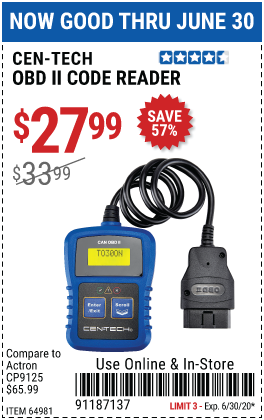
Credit: go.harborfreight.com
Read codes before making a repair decision
Capture the exact code and the system that reported it. Record whether the tool identifies it as stored, pending or another status. A description is a starting point for diagnosis, not an order to replace the named part. The same apparent symptom can involve wiring, power supply, mechanical condition or a component that responds incorrectly.
Delay the erase function until evidence is saved
Photograph or export all relevant screens before clearing. Include freeze-frame and readiness information where supported. Clearing may remove useful diagnostic context, and an unresolved fault can return. If a shop will investigate the vehicle, retaining the original information may be more valuable than arriving with an extinguished light and no record of what happened.
Read live values under known conditions
Record the parameter name, unit and operating state with each value. A cold engine, a warm idle and a loaded engine are not interchangeable comparison points. Select only the values relevant to the test. A smaller display list is often easier to interpret than a rapidly changing screen full of unrelated numbers.
Understand what the ZR13s example does not prove
The ZR13s manual documents its own menus and supported functions. It cannot establish the abilities of an older ZURICH unit or a different Harbor Freight scanner. Before using an advanced option, verify both the tool documentation and the vehicle procedure. Product branding should never substitute for the required application-specific instructions.
Use freeze-frame as a snapshot
Freeze-frame can preserve conditions associated with a recorded emissions fault. Save the available fields and their units before erasing.
It is not a continuous recording of everything the driver experienced. If the complaint is intermittent, compare the snapshot with the driver's account rather than assuming it captured every moment of the event.
Treat readiness as completion information
Readiness indicates whether supported emissions checks have completed, not whether every possible fault has been excluded. Note unsupported monitors separately from incomplete ones.
A recent battery interruption or code clear can affect readiness. BAR's inspection reference explains that inspection rules also consider issues such as permanent codes.
Apply the rules for your own jurisdiction, not a generic promise from the scanner screen.
Compare results with a diagnostic plan
Choose the next check because it distinguishes plausible causes. For example, a voltage-related code may require circuit checks rather than immediate sensor replacement. Record what each test was meant to establish and what it actually showed. This keeps an inexpensive reader useful without asking it to make decisions that require service information and other equipment.
Avoid replacing parts from the code wording alone
A code identifies a detected condition within a monitored system. It may not identify the root cause. If the proposed repair is expensive, ask what measurement or inspection confirmed it. A parts-store printout or automatic suggestion can be helpful background, but it is not the same as a verified fault isolation procedure.
Interpret a blank result carefully
No engine codes does not mean no faults anywhere. The selected module may not cover the warning, the condition may not have met a setting threshold, or the symptom may be mechanical. Confirm the scope of the scan. If the lamp remains on, investigate the correct system instead of repeatedly clearing an unrelated engine menu.
Build a short evidence record
Write the complaint, conditions, codes and observations on one page. Separate facts from guesses. Include any recent work and whether the fault occurs at startup, after warming up or under a particular load. This record helps a technician repeat the relevant conditions and avoids losing useful details between the initial scan and the repair visit.
Distinguish power trouble from communication trouble
A reader that remains dark has a different starting point from one that powers on but cannot access a module. Inspect the lead and consult the vehicle's fuse information. Do not bridge diagnostic pins or introduce power to an unidentified terminal. If electrical testing is needed, use the correct diagram and appropriate test equipment.
Check simple setup errors first
Confirm the ignition state, secure connection and correct vehicle or menu selection. Read any displayed error exactly. If another supported vehicle communicates normally, that comparison is useful but does not alone identify the failed part in the first vehicle. Likewise, one failed connection is insufficient evidence that the reader must be replaced.
Keep code definitions tied to the vehicle
Generic and manufacturer-specific descriptions are not always interchangeable. Preserve the full code rather than searching only the last digits. Use applicable service information for its setting criteria and diagnostic route. A familiar phrase on the screen can conceal differences in engine configuration, circuit design or test conditions across model years.
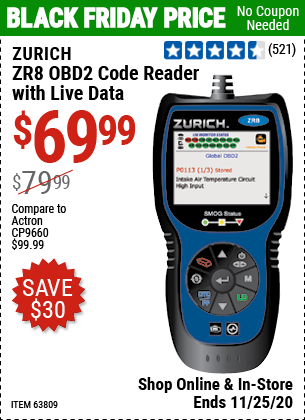
Credit: go.harborfreight.com
Look after the equipment between uses
Disconnect and store the reader as instructed, keeping the plug dry and the cable free from sharp bends or heavy loads. Do not leave it where heat or moisture can damage it. If the tool is shared, keep its manual and adapters together so the next user does not substitute an incompatible accessory.
Use the documented update process
Check whether your particular model supports updates and where the official files are provided. Follow the required power and connection precautions. Do not install software merely because its filename resembles the model number. If an update fails, keep the error information and seek the correct support route rather than trying unrelated firmware.
Finish with a verification record
After a confirmed repair, follow the vehicle's prescribed verification process. Record returning codes and supported readiness results.
Keep the pre-repair and post-repair scans together. A light that stays off briefly is encouraging but does not establish that an intermittent condition has been resolved under every relevant circumstance.
Know when the reader has reached its limit
A basic scan can provide a useful description of what the vehicle recorded. It cannot replace a pressure test, wiring diagnosis or mechanical inspection when those are needed.
If coverage is uncertain, a safety-related warning persists or the required procedure exceeds your equipment, stop at documenting the evidence. The best use of the scanner is the one that leads to a supported next decision.


Automotive reference information. Confirm specifications in the manual for your exact vehicle. Original replacement guides link to their research sources. About us