Using an Innova scanner begins with identifying the exact model and software revision, then choosing the diagnostic function that matches your question. A screen for reading engine codes, a saved report and a service-reset menu do different jobs.
Do not treat every available button as a harmless reading command. Start with a documented read-only scan, preserve the findings and decide what evidence is needed next.
This guide uses Innova's support structure to explain those choices without pretending that all Innova tools share the same controls or vehicle coverage.
Identify your tool before following a tutorial
Find the model number on the device and note its version where the tool displays one. An instruction for a different handheld or tablet may lead to a menu you do not have. The Innova: manuals by model and revision separates manuals by model and revision, which is the appropriate place to begin.
Define the system you need to inspect
An engine malfunction light, an ABS warning and a maintenance reminder are separate questions. Write down which lamp or symptom prompted the scan. This prevents selecting a convenient reset function that has no relationship to the complaint. It also helps verify whether your specific tool supports the needed system.
Check capability before spending money
A more expensive scanner is not automatically necessary for an ordinary code record. Conversely, a basic reader may not reach the module involved in your problem. If borrowing or buying, verify the required function for the exact vehicle first. Compare the test you need rather than the number of advertised features.
Use vehicle-specific coverage information
Record the year, model, engine and market, not only the manufacturer badge. Coverage for one version of a vehicle does not establish coverage for another. If the support checker lists restrictions, retain them with your notes. A connector that fits is not proof that every module can be interrogated.
Learn navigation before a service command
Use the manual to identify how to return to the previous screen and how confirmation prompts work. Read a selection completely before accepting it. A familiar-looking icon can open a different function on another model. Pause whenever a command describes changing, actuating, learning or resetting something.
Separate optional features from the first scan
A first diagnostic report does not require trying every advanced feature. Focus on the relevant system and the evidence available through reading functions. If a procedure would move components or change learned values, it belongs to a separate repair plan with its own prerequisites and safety instructions.
Treat another owner’s result as a separate case
Reviews can describe usability, but they cannot establish what caused your vehicle's fault. A successful repair on a different engine is not a diagnostic test of your own. Keep the scanner's actual results separate from suggestions found in comments or product ratings.
Save the documentation with the model details
Keep the applicable manual and support page accessible before starting. If the menu differs from the instructions, record the model and software version for support. Do not fill a gap by following a video for an unidentified tool. Version information makes a support question much easier to answer.
Prepare the vehicle and the scanner together
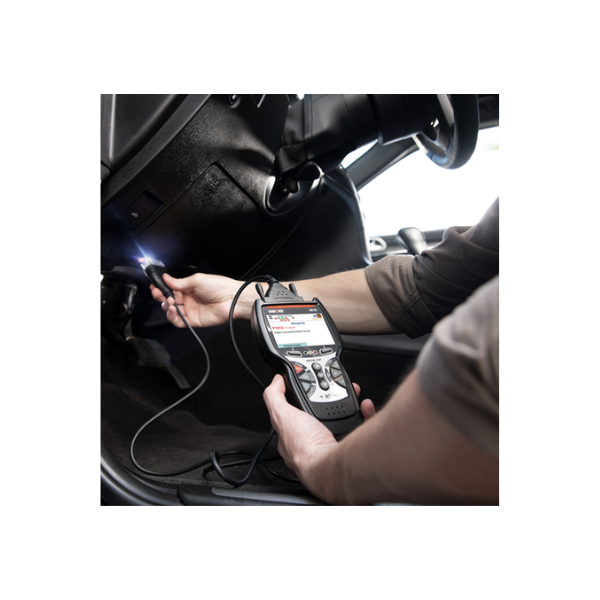
Park securely and arrange the cable so it cannot interfere with pedals or controls. Follow the manual's ignition and connection order. Check the scanner and plug for obvious damage before use. A diagnostic session should not begin with a loose cable hanging into the driver's footwell.
Do not confuse tool power with vehicle state
Depending on the model, the scanner may use vehicle power or have its own power arrangement. Its display turning on does not establish the ignition state required for a test. Confirm the vehicle's actual state and the manual's requirement before attempting communication.
Use the documented diagnostic connection
Locate the proper vehicle connector through the owner's or service information. Seat the plug without forcing it and do not alter terminals to improve contact. If the socket is loose or visibly damaged, have that problem assessed. An improvised adapter is not a substitute for confirmed compatibility.
Recognize the level of the menu you are viewing
A main menu, a vehicle-system menu and a data-viewing screen can offer similarly named choices. Note where you are before making a selection. The Innova: 5610 official support library organizes Global OBD2, individual modules and service functions separately; that organization is a useful reminder that they are different tasks.
Read labels and units, not just colors
A colored icon or gauge may summarize a limited status. Read the accompanying wording and determine what the tool actually checked. An emissions-related indicator cannot certify unrelated safety systems. If the screen contains a value, preserve its label and units rather than recording only the number.
Start with the least intrusive relevant function
Choose the documented reading function for the system involved. Avoid service resets or active tests as exploratory steps. If a menu description is unfamiliar, consult the manual before continuing. The fact that a function is available does not mean it is required or appropriate for the current complaint.

Credit: www.innova.com
Record the complete initial code report
Capture the code strings, status descriptions and module names before making changes. Include all reported codes rather than selecting one that appears to match the symptom. A full first report allows a repairer to identify related conditions and distinguish them from information that arose later.
Keep the detected condition separate from its cause
A code can identify a circuit, a performance comparison or a monitored system. Its brief description is not a verdict against a named component. Use the vehicle's diagnostic procedure to connect the result with a cause. Do not replace a part merely because its name appears on the scanner.
Understand the time represented by freeze-frame data
A freeze frame is a stored snapshot associated with a recorded event. It should not be treated as a current sensor display. Write down the related code and available operating conditions. That snapshot can guide further investigation, but it does not describe every moment before or after the fault.
Keep erasing separate from collecting evidence
Read and save the initial results before considering any clearing command. Ask what repair or diagnostic step makes clearing appropriate. If a workshop will investigate the car, preserve the original report for it. A blank code list after an erase operation is not evidence that the original defect disappeared.
Check whether you are reading current or saved information
Some tool functions display reports retained from an earlier session. Confirm the vehicle identity and timestamp before using a screen as evidence about the car in front of you. A saved report can be useful history, but it is not a fresh scan unless the session was actually performed again.
Document the reason for a post-repair clear
After a completed repair, a technician may use a clearing step as part of a documented verification procedure. Record the original code and repair first. Keep the time of clearing in the service history so later readiness results and returning faults can be interpreted in context.
Choose the intended module explicitly
If the tool supports module-specific diagnosis, check the selected system before reading its results. A report from the engine controller does not automatically include the restraint or brake controller. If the requested module cannot be accessed, describe that limitation instead of writing that no faults were found anywhere.
Compare the exact status wording
Pending, stored and other status labels describe different kinds of information. Their meaning should be checked against the tool and vehicle documentation. Preserve the original wording in your report. Converting all statuses into an undifferentiated list can obscure whether a condition is recent, confirmed or retained as history.
Read the erase confirmation completely
A confirmation screen may identify the scope and consequences of the command. Do not dismiss it automatically. If it does not match the intended repair step, cancel and return to reading functions. Keep emissions monitor effects and module-specific requirements in mind when planning the verification that follows.
Verify the repair with an appropriate follow-up
A second scan should answer a defined question, such as whether the relevant fault has returned under the prescribed verification conditions. Do not drive an unsafe vehicle solely to complete a scan. Follow the vehicle's warning guidance and the repair procedure rather than an improvised test route.
Understand what advanced functions can change
Bidirectional tests, adaptations and service routines are not passive observations. They can command components or alter settings. Use them only when the exact vehicle procedure, equipment requirements and safety conditions are understood. A menu entry should never be treated as a recommendation to experiment.
Select a small relevant live-data set
When live data is supported, choose parameters that address the complaint and identify their units. Displaying every available value can make changes difficult to follow. Record engine state and operating conditions alongside the data. Do not compare readings from different conditions as though they were measurements of the same test.
Interpret readiness within its proper scope
Readiness describes completion of supported emissions-monitor checks. It does not mean the vehicle has passed every possible inspection or that all systems are healthy. Check the applicable inspection requirements separately. A scanner's status display is useful information, but it is not a substitute for the jurisdiction's actual test.
Plan updates outside an active vehicle procedure
Use the exact model's official update instructions and ensure the required computer or network arrangement is available. Do not begin an update while relying on the tool to complete another procedure. Retain any needed reports first and avoid disconnecting power during a documented installation process.
An update is not a repair for every complaint
Software maintenance may improve a tool's operation or coverage, but it does not resolve a mechanical vehicle fault. Describe whether the problem is a missing feature, connection failure or suspicious reading. Those observations help determine whether updating is relevant rather than making it a universal first step.
Check the model-specific support route
Follow the support link for the exact device and revision rather than a search result offering a generic updater. Verify that the instructions match your operating system and hardware. If an update is not offered for the tool, do not assume a third-party download is an acceptable replacement.
Preserve settings and reports before maintenance
Read the update or reset instructions for any warning about stored information. Export needed diagnostic reports first where supported. Note custom settings so they can be restored intentionally. Avoid turning a software maintenance step into an accidental loss of the evidence collected for an unresolved vehicle problem.
Record an update problem precisely
If an installation stops or a feature disappears, save the displayed message, device identification and software version. Do not repeatedly interrupt and restart an undocumented recovery sequence. Use the manufacturer's support process with those details. A clear failure description is more useful than trying unrelated firmware packages.
Confirm normal operation after an update
Check the tool's version and basic navigation according to its instructions before the next vehicle session. Reconfirm coverage if a feature is central to the planned job. A successful software installation does not itself validate a vehicle diagnosis; it only establishes that the maintenance step completed as expected.
Keep the owner’s role proportionate
An owner can often collect useful observations and a code report without performing active service routines. Decide which work you can do safely and which requires trained support. The value of the scanner comes from accurate evidence and better decisions, not from using every function it advertises.
Credit: www.innova.com
Troubleshoot the session in a controlled order
Write down the point where the process failed: tool startup, connection, vehicle identification, module selection or data reading. Then follow the applicable support steps for that stage. Changing many settings at once makes the original issue harder to isolate and can introduce a new one.
Inspect the connection before blaming a controller
A disconnected or damaged plug can explain a failed link without implying an ECU fault. Check only what can be inspected safely and use the documented reconnection sequence. Do not jump terminals or modify the cable. If the socket itself is defective, that is a separate service issue.
Recheck coverage when a module is absent
A successful generic engine scan does not prove that the tool supports every module in the vehicle. Verify the exact system and function in the coverage information. Report an unsupported module honestly. Do not convert a coverage gap into a claim that the system has no stored codes.
Address unstable power through proper service practice
If the tool or vehicle indicates a supply problem, stop and follow the relevant instructions. Do not improvise electrical connections at the diagnostic socket. A weak or unstable supply can undermine a session, but identifying its cause requires the correct electrical checks rather than repeated clearing attempts.
Use support when the documented steps do not match
Prepare the tool model, version, vehicle details and exact error text before contacting support. Explain what already worked and what failed. This avoids repeating basic steps and helps distinguish a compatibility limitation from a device problem. Keep any sensitive vehicle information out of public troubleshooting posts.
Interpret the vehicle’s warning independently
A scanner connection problem does not cancel a dashboard warning or make the car safe to drive. Follow the owner's manual for the warning and observed behavior. Severe drivability or safety-system concerns require an appropriate inspection even if the tool cannot communicate with the relevant controller.
Avoid a factory reset as a reflex
A tool reset may affect settings or saved reports and should follow the manufacturer's instructions for a defined problem. It is different from clearing vehicle codes. Preserve your evidence before either action. The scanner-reset guide explains this distinction in more detail.

Credit: www.innova.com
Leave with a report and a justified next step
A successful Innova session identifies the vehicle, the function used and the information obtained.
Keep the initial report, document any authorized changes and state what remains uncertain.
When a result exceeds the tool's coverage or your ability to test safely, use it to guide qualified diagnosis rather than to guess a repair.


Automotive reference information. Confirm specifications in the manual for your exact vehicle. Original replacement guides link to their research sources. About us