To use a Launch OBD2 scanner, identify its exact model, obtain the matching manual, confirm vehicle coverage and begin with a read-only diagnostic report. Save the codes and their context before considering any erase command.
Launch makes different tool families, so a Creader procedure is not automatically the procedure for an X-431 device or a similarly named newer version.
This guide organizes the decisions common to a careful first scan without inventing one menu sequence for the entire range.

Credit: www.amazon.com
Start with the diagnostic task
Write down the warning or symptom you want to investigate. A check-engine concern, an ABS warning and a service reminder are different tasks. The function you need determines whether basic emissions access is sufficient or enhanced vehicle-system coverage is required.
What the scanner actually reports
The scanner communicates with supported vehicle controllers and presents their available diagnostic information. It does not directly inspect every component named in a code. Treat the readout as evidence for an investigation rather than an automatic instruction to purchase a replacement part.
Communication has several stages
Powering the tool, identifying the vehicle, reaching a controller and obtaining a meaningful report are separate stages. A successful first stage does not guarantee the later ones. Note where a failure occurs so troubleshooting addresses the actual problem.
Why an initial scan is useful
A saved baseline can preserve an intermittent fault even if the symptom is absent during service. It also helps distinguish an existing condition from one recorded later. Record the date, mileage and reason for scanning alongside the report.
Choose features from documented coverage
Look for support for your vehicle and intended controller, useful report handling and the required data functions. Do not buy solely by the number of advertised resets. A broad feature list may include operations that do not apply to your specific vehicle.
Credit: m.youtube.com
Benefits depend on interpretation
A scanner is most useful when its output narrows the next sensible check. It becomes less useful when every code is treated as a component verdict. Plan to connect the reported condition with symptoms, operating context and appropriate repair information.
Identify the recorded problem precisely
Copy the full code, including its letter, and any available status or subcode. Similar-looking codes can describe different conditions. Preserve the controller name as well, because a report from one module should not be presented as a complete vehicle diagnosis.
Avoid unnecessary parts replacement
Before buying a named sensor or actuator, establish what evidence would distinguish that part from wiring, supply, mechanical or operating causes. The test plan depends on the particular code and application. Reading a code alone does not complete those checks.
Use the report to ask better questions
A useful conversation with a repairer begins with the actual complaint and saved evidence. Ask which test confirms the suspected cause and how the repair will be verified. This is more informative than presenting an internet code description as a settled diagnosis.
Keep warning urgency separate from scanning
Follow the owner manual for urgent warnings and severe symptoms. Do not keep operating a vehicle merely to collect additional data when it is overheating, losing essential braking capability or running dangerously. A scanner connection does not make continued operation safe.
Emissions information has a defined scope
Readiness information concerns supported emissions monitors, not every mechanical or safety system. It can help explain why an inspection has not completed, but local inspection rules still matter. Do not use a clear engine-code list as proof of universal compliance.
Maintenance still needs an independent schedule
An OBD report does not replace the manufacturer's maintenance schedule or physical inspections. Many service needs are not announced by a diagnostic code. Keep routine maintenance records separate from fault reports so neither is mistaken for the other.
Use a real model as a coverage example
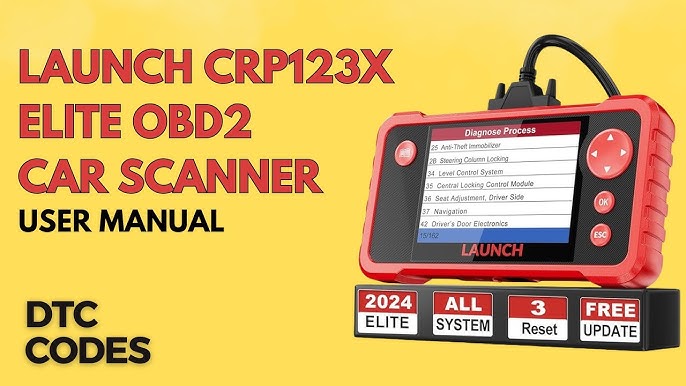
Launch identifies its CRP123 E/X/I V3 family as supporting basic diagnostics for engine, transmission, ABS and SRS, alongside OBD functions. That is a model-family description, not a promise that every Launch product offers the same access. Confirm the exact application before use.
Live data needs an operating context
Choose a few relevant parameters instead of displaying everything at once. Record whether the engine is stopped, idling, warming up or operating under another controlled condition. Without that context, a number can be technically accurate yet misleading.
Read code status as well as code text
If the tool distinguishes pending, confirmed or other statuses, retain those labels with the report. Do not merge them into a single list without context. The vehicle-specific diagnostic procedure determines what each finding means for the next step.
Interfaces differ between generations
A touchscreen workflow may differ from a button-operated reader, and menu names can change with software. Use the manual for the model printed on the device. Avoid following screenshots solely because the case color and brand logo look familiar.
Vehicle identification must be checked
The cited Launch family includes automatic VIN identification, but you should still confirm that the displayed vehicle matches yours. Correct a mismatch using the supported process. Do not continue a manufacturer-specific session under an incorrect model or engine selection.
Save a report you can understand later
Where report export is supported, keep the original file and a short note describing the symptom. Check that the export includes the intended controller and results. If it does not, record the missing information accurately without adding imagined findings.
Prepare before plugging in
Park safely, secure the vehicle and identify the correct diagnostic connector from the owner information. Read the scanner's connection instructions before starting. Arrange enough time to save the report without rushing into clear or service functions.
Gather identification and documentation
Have the vehicle's year, model, engine and market information available, together with the scanner model and software version. Obtain the matching manual from the manufacturer's product or support route. These details are especially useful if support later needs to reproduce a connection issue.
Locate the diagnostic connector safely
Use the vehicle manual if the connector is not obvious. Inspect for visible damage without probing or bridging terminals. Do not force the plug into another connector or remove trim blindly; an unidentified socket should be identified before connection.
Connect using the matched instructions
Follow the required ignition and power sequence in your scanner manual. Seat the connector without excessive force and route the cable away from pedals and moving parts. If the equipment uses a separate interface, follow its own documented pairing procedure.
Check power before diagnosing communication
If the device does not power up, determine whether that model uses vehicle power, an internal battery or another supply arrangement. Follow its troubleshooting guidance. Do not infer an ECU failure from a dark screen or improvise power connections to diagnostic terminals.
Confirm that the intended controller responds
A connection message should be followed by actual access to the relevant diagnostic information. If access fails, record the exact message and stage.
Confirm the vehicle selection and required ignition state before retrying. Avoid repeatedly cycling unrelated settings because that makes the original failure harder to reproduce.
Navigate deliberately
Read the screen title before selecting an option. A generic OBD session, a manufacturer-specific scan and a service routine are not interchangeable. Back out if you are unsure what a command will change instead of assuming every menu item is read-only.
Separate viewing from changing
Functions that display codes or data serve a different purpose from erase, reset, adaptation or actuator commands. Identify that difference before proceeding. A first information-gathering session usually does not require changing the vehicle's stored diagnostic state.
Select the function that answers your question
If the complaint concerns an engine warning, begin with the appropriate engine evidence. If it concerns another system, verify coverage for that controller. Do not interpret a successful generic emissions scan as proof that the unsupported system has no faults.
Retrieve the complete code report
Allow the supported read operation to finish and inspect all returned entries. Keep the code and description together, along with the module and status. An abbreviated photograph of the first result can omit information needed to understand the full report.
Record what the device actually found
Distinguish no reported codes from unsupported access, failed communication and an incomplete scan. These outcomes are not equivalent. If the result is uncertain, save the message verbatim and resolve the access problem before drawing conclusions about the vehicle.
Interpret results through a test plan
Consult reliable vehicle-specific diagnostic information for the exact code and symptoms. Consider which observations would confirm or rule out the proposed cause. A generic code lookup can explain terminology but cannot supply every connector test, specification or repair decision for your application.
Clearing is not a first diagnostic step
An erase operation can remove useful context without correcting the cause. Manufacturer guidance on preserving diagnostic records explains why clearing before service can hinder troubleshooting. Keep the baseline and understand the consequence before deciding whether clearing belongs in a repair-verification procedure.
Clear only for a justified purpose
After a diagnosed repair, the manufacturer's procedure may call for clearing and subsequent verification. That is different from erasing an unexplained warning to see whether it stays away. Retain the before-and-after evidence and note the reason for the action.
Use the exact model procedure for erasure
Do not copy a universal sequence from another Launch model. Confirm the intended controller and review the device's warning before any erase command. If the function's effect is unclear, stop and consult the manual or qualified support rather than experimenting.
Advanced functions require their own preparation
Actuator tests, adaptations, coding and calibration can have prerequisites and consequences beyond ordinary reading. Their presence in a menu does not establish that they are appropriate for the current fault. Use the specific service procedure and required equipment before attempting them.
Compare like-for-like live data
Keep units and operating conditions consistent when comparing readings. A value taken with the engine stopped should not be judged against an unrelated warm-idle example. For interpreting parameter context, see our guide to reading OBD2 live data.
Readiness does not become complete by erasure
California BAR explains readiness and permanent-code behavior in its OBD reference. Clearing diagnostic information is not a shortcut to completing required monitoring. Use the rules applicable to your inspection location and the vehicle's supported verification process rather than a generic mileage promise.
Update through the correct product route
Launch devices do not necessarily share one updater, account process or storage method. Locate the instructions for the exact model and region. Do not install an update package simply because its filename contains a similar product number.
Check what the update applies to
Confirm the device identity, current version and update instructions before starting. Preserve diagnostic reports if the documentation recommends a backup. An update may improve coverage, but it should not be presented as a guaranteed solution to an unexplained vehicle fault.
Complete updates without interruption
Follow the manufacturer's power and connection requirements throughout installation. Do not disconnect the device because progress appears slow unless its instructions direct that response. After completion, confirm the reported version and intended function before relying on a new diagnostic result.
Troubleshoot one stage at a time
Separate device power, interface connection, vehicle identification and controller access. A problem at one stage should not trigger random changes at every other stage. Record what changed between attempts so a successful retry or persistent failure has an interpretable history.
When the connection fails
Check the exact model instructions. Confirm that the connector is seated and the required ignition state is correct.
Record any visible damage without probing the terminals.
Verify that the vehicle and system are supported.
If these checks do not resolve it, seek qualified troubleshooting rather than jumping diagnostic pins.
When an error message appears
Save the exact wording. Note the function being attempted.
Record the selected vehicle and software version.
Distinguish an unsupported operation from a failure to communicate.
Give those details to support instead of describing every outcome as a broken scanner.
Avoid repeated erase or reset attempts while the cause of the error remains unknown.
Maintain the equipment as a diagnostic tool
Inspect the cable and connector for damage before use. Store the device so the plug is not strained or contaminated. A damaged interface can undermine communication, and its condition should be addressed before trusting an intermittent result.
Clean without damaging connections
Follow the manufacturer's cleaning instructions and keep liquids away from electrical openings. Do not scrape contacts or spray an arbitrary solvent into the connector. If contamination or damage is significant, obtain the appropriate service guidance before using the equipment again.
Keep software and records organized
Retain the correct manual, update instructions and saved reports for the model you own. Label reports by vehicle and date so another car's data is not mistaken for the current scan. Review coverage when your vehicle or diagnostic task changes.

Credit: fnirsistore.com
A useful first scan ends with preserved evidence
Identify the Launch model, verify coverage, connect according to its manual and save the correct controller report before changing anything. Use the findings to choose an appropriate diagnostic test rather than treating a code as a parts order.
A careful read-only baseline is often the most valuable result of a first session. Advanced commands and clearing belong to a documented repair process, not an attempt to make the screen look clean.


Automotive reference information. Confirm specifications in the manual for your exact vehicle. Original replacement guides link to their research sources. About us