To use a Vgate OBD2 device, identify the exact model and connection type before selecting an application. Vgate sells different product families and wireless variants, so instructions for one adapter should not be treated as universal.
Match the hardware, phone system, app and vehicle function, then make a read-only connection and save the first report. A successful phone connection does not prove that the vehicle controller has responded.
This guide explains those distinctions, including why Bluetooth Low Energy setup on an iPhone differs from a generic instruction to pair any Bluetooth adapter in system settings.
Read the full product label
Record the model and radio version rather than only Vgate. Keep the supplied instructions with that identification. Similar names can conceal different transports or capabilities, and a tutorial that omits the variant may be describing hardware unlike yours.
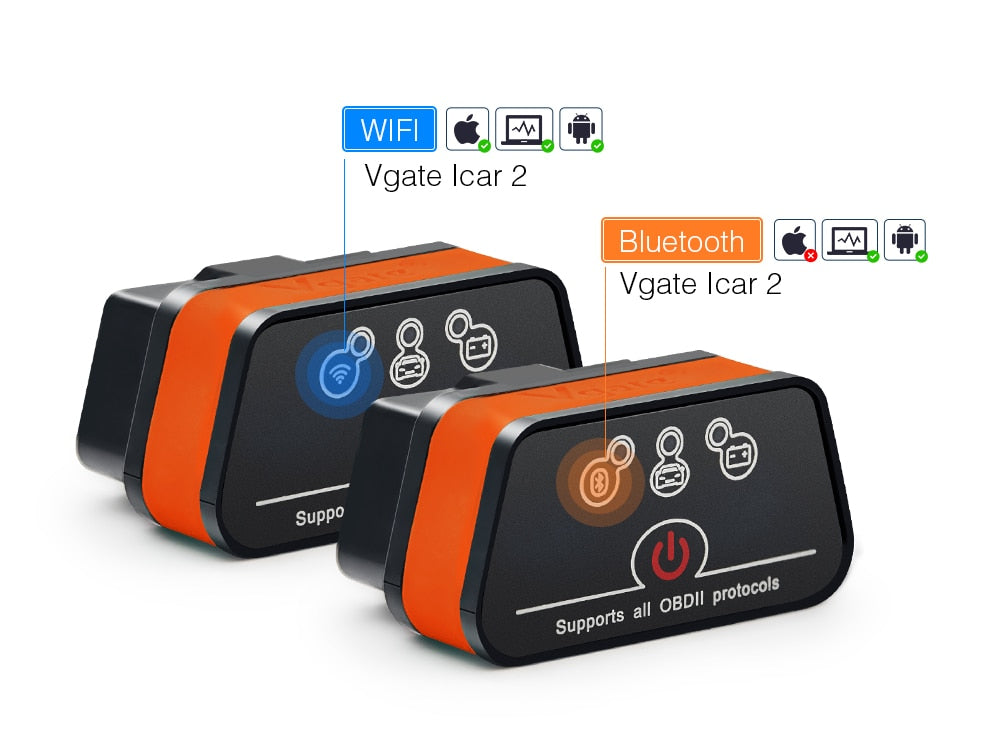
Distinguish the product families
The Vgate iCar Pro product page shows separate Bluetooth, BLE and Wi-Fi variants alongside other product families. That distinction matters before any setup begins. Do not transfer coverage or firmware claims from a vLinker product to an iCar adapter simply because both are sold by Vgate.
The adapter and app share the job
The adapter handles communication while the app provides the interface and supported diagnostic functions. An app's feature list still depends on compatible hardware and vehicle support. Neither the adapter brand nor a successful app installation alone establishes the complete capability of the combination.
Choose a concrete first objective
Decide whether you need a generic engine code report or a particular supported data field. Start there rather than exploring every menu. A focused objective makes it easier to tell whether setup succeeded and prevents an unsupported service function from becoming the first compatibility experiment.
Verify both communication links
Check phone-to-adapter recognition and adapter-to-vehicle communication separately. If the app sees the adapter but cannot reach the vehicle, record that exact stage. If the phone cannot detect the adapter, changing code-display settings is unlikely to address the problem.
Choose by documented compatibility
Compare the exact adapter and application requirements for your phone and vehicle. Do not assume a more recent Bluetooth number automatically means broader diagnostic coverage. Transport compatibility and controller access are different properties, and both need to fit the intended job.
Use the correct transport category
A conventional Bluetooth variant, BLE variant and Wi-Fi variant require different connection choices. Read the label and manual before changing app settings. Guessing among transports can create a misleading impression of a broken adapter when the phone is simply looking for the wrong type of device.
For BLE on iPhone, follow the app workflow
Car Scanner’s iOS BLE guide explains discovery through the application rather than ordinary system pairing for its supported BLE workflow.
Apply that instruction only to the identified compatible adapter and app.
It is not a claim that every Vgate product uses the same process or that all Bluetooth devices behave alike.
Do not invent a universal pairing code
Use the documented instructions for the exact variant if a code or pairing step is required.
Do not treat a commonly repeated internet PIN as a verified Vgate-wide setting.
Keep the model information available.
If the instructions do not match the phone's prompts, stop and confirm the product and transport before continuing.
Separate connection features from diagnostic features
A stable radio link does not guarantee ABS, airbag or manufacturer-specific access. Those functions need explicit support in the complete tool-and-app combination. Check the actual coverage rather than treating the presence of a familiar module name in a demonstration screenshot as a promise for your vehicle.
Check the vehicle application
Verify the model year, market, powertrain and intended diagnostic function against the documentation. A standard-shaped connector is not a complete compatibility check.
If the target is a manufacturer system, ask specifically about that system instead of relying on a broad OBD2-compatible statement.
Know which app controls the display
The application's labels, reports and menus may change independently of the adapter hardware. Record its version when following a guide or seeking help.
Do not look for a universal Vgate menu sequence when the interface is actually supplied by a separate app developer.
Check recording support before relying on it
If you need a log, confirm that the application can save the required parameters with units and timing. Open a short test export to verify its contents.
A dashboard that displays a value does not necessarily save it in a useful report.
Preserve the original file before adding notes or converting formats.

Credit: www.amazon.com
Prepare a stationary connection
Park safely and arrange the adapter so it cannot interfere with controls. Follow the vehicle and adapter instructions for connection and ignition state. Do not attempt the first pairing or configuration while driving, even if the device is advertised as convenient for live monitoring.
Match the variant before buying software
Check that the chosen app supports the specific transport and hardware. A paid application cannot make an incompatible radio version work by itself.
Confirm whether the required vehicle function is included in the installed version before treating a missing menu as a device fault.
Install from the developer’s recognised source
Use the official application distribution route and read its connection instructions.
Avoid unknown downloads presented as mandatory adapter drivers for a phone.
Review the requested permissions.
Grant the permissions needed for the supported connection rather than disabling broad phone protections as a generic troubleshooting measure.
Connect to the vehicle without force
Use the documented diagnostic socket and align the plug correctly. Inspect external damage before use. Do not probe terminals or improvise an extension because the adapter sits awkwardly. If additional hardware is needed for safe positioning, verify that it is suitable for the intended connection.
Confirm the required ignition state
The adapter may receive power before the vehicle is ready for the requested diagnostic communication. Follow the vehicle's instructions, especially with push-button start.
Accessory operation and ignition on may differ. A status light on the adapter is not proof that the ECU has completed a supported response.
For Wi-Fi, use network settings from the manual
Car Scanner’s Wi-Fi instructions separate joining the adapter network from selecting the connection in the app. They also require the correct address and port.
Do not substitute settings from a BLE tutorial.
A local adapter network may not provide internet, which is a separate issue from diagnostic communication.
Save the initial report
After a valid connection, retrieve the supported codes and preserve their status and module context. Keep available freeze frame with the report. Do not clear faults to test whether the adapter works; a successful read is a better first confirmation and leaves the diagnostic evidence intact.
A code is a lead, not a component verdict
Use the full code and the vehicle's diagnostic information to decide the next test. A description can name a circuit or detected relationship without identifying the failed part. Avoid buying a sensor simply because it appears in a short app explanation.
Use the app that was actually verified
If you change applications, recheck transport settings, vehicle profile and feature coverage. A working connection in one app does not prove that another uses the same configuration. Keep separate reports labelled so cached information from the previous session is not mistaken for a new scan.
Begin with supported read-only functions
Read identification, codes and relevant data before considering any active command. A menu option does not establish that the action is appropriate. Coding, actuator tests and service resets require the exact vehicle procedure and should not be explored as casual demonstrations of adapter capability.
Interpret engine data in context
Select a few fields that answer a question and record their units and operating conditions. A cold-start capture and a warm-idle capture are different comparisons. Use the live-data guide to avoid turning an unfamiliar number into an unsupported diagnosis.
Verify transmission or other module coverage separately
Do not assume a generic engine connection includes every transmission parameter or fault. If a specific warning prompted the scan, confirm the relevant controller was reached. A no-code result from a different system cannot answer that warning.
Credit: modeautoconcepts.com
Keep expectations tied to evidence
The value of the adapter is obtaining a clear report or recording that supports diagnosis. It does not guarantee a repair, lower fuel consumption or prevent every breakdown. Evaluate whether the actual information retrieved answers the original question before adding more gauges or purchasing extra functions.
Use a diagnostic plan to control costs
When the report suggests several possible causes, ask what test distinguishes them. Replacing listed parts sequentially can cost more than obtaining a focused professional diagnosis.
The adapter is most useful when it preserves evidence and narrows the next step rather than encouraging confident guesses.
Do not replace scheduled service with scanning
Follow the vehicle's maintenance requirements independently of whether codes are present.
A clean report does not measure every wear item or fluid condition.
Record relevant symptoms separately.
Use scans for defined questions and repair verification, not as a universal substitute for inspection and maintenance.
Troubleshoot in stages
Write down the last successful step: adapter power, phone recognition, app connection or ECU response. Then use the matching documentation for the failed stage. Changing several unrelated settings at once can make a temporary success difficult to reproduce and conceal the original cause.
Avoid competing sessions
Follow the app guidance about other software using the same adapter and close unnecessary diagnostic sessions. Confirm the selected device when more than one is nearby. If a connection remains unstable, save the error and seek model-specific support instead of sending arbitrary commands.
Check stale displays before suspecting sensors
Confirm that the screen is live and values are refreshing. Verify units and full parameter names. If the field is unsupported or the app is showing playback, it is not evidence of a failed vehicle component. Resolve the display context before interpreting the number.

Credit: www.amazon.com
Use official model-specific updates
Vgate’s download centre lists separate product packages. Match the exact hardware and follow the update instructions; do not install a file intended for a similar name. Keep the current version recorded in case support needs to understand what changed.
Do not interrupt an update
Follow the required power and connection arrangements until the documented process completes. If it fails, use the manufacturer's recovery guidance. Repeated unplugging or trying unrelated firmware can turn a manageable software issue into a harder device problem.
Treat sleep features cautiously
A product's advertised sleep function does not establish that leaving it attached is appropriate in every vehicle and circumstance. Follow the adapter and vehicle guidance for removal and storage. Protect the connector and keep important reports backed up separately from the phone.
A successful Vgate session has a traceable setup
Record the model, transport, app, vehicle profile and saved result. That makes the next connection reproducible and support requests more precise.
Match the connection type first, verify actual vehicle communication and preserve the report before making changes.


Automotive reference information. Confirm specifications in the manual for your exact vehicle. Original replacement guides link to their research sources. About us