A PXN gaming wheel that does not work can have a connection, compatibility, mode or game-configuration problem. First identify the exact model on the device label and the platform you are using.
Instructions for a V9, V9 Gen2 and another PXN wheel are not automatically interchangeable. This article concerns a racing-game controller, not the steering system of a road vehicle.
Do not dismantle the wheel or install an unidentified firmware file. The most useful first test is whether the supported platform can detect the device and register its inputs outside the game.
Record the complete setup
Write down the wheel model, console or computer, operating-system version, game and any pedals or shifter connected. Include the cable arrangement and whether the setup worked previously. A support request that says only PXN wheel not working leaves too many possibilities. Photograph the label if necessary, but avoid posting serial numbers publicly. Use the exact model to find its instructions on PXN: model-specific manuals and downloads.
Compatibility comes before troubleshooting
Check that the manufacturer lists support for the particular platform and intended connection. A connector fitting physically does not establish compatibility. A game supporting controllers does not necessarily support every wheel feature. If the platform or game is unsupported, repeated resets may not help. Confirm support from the current product information or ask PXN before purchasing extra adapters or cables to make an assumed combination work.
Compare the model name carefully
A product generation suffix can change setup requirements. Do not select a download because the photograph resembles your wheel. Compare the label, manual title and the supported hardware revision. If the label is unclear, ask the manufacturer to identify it from a safe photograph. Mixing a manual for one generation with a firmware tool for another creates unnecessary uncertainty and can make recovery more difficult.
Inspect the basic connections without forcing them
With the equipment in the state specified by its manual, check that the required connectors are fully seated and undamaged. Match pedals and shifter connections to the labeled ports. Do not force a plug into a similar-looking socket or pull a cable by its wire.
PXN V9: manufacturer user manual includes the V9 connection arrangement and warns against user disassembly. Follow the correct model's sequence rather than rearranging everything while the game is running.
Separate no power from no input
An unlit device and a detected device with unmapped steering are different faults. Record indicator behavior, but interpret colors only through the correct manual. If the wheel receives no apparent power, inspect the supported cable and connection path first. If it lights up, continue to detection and input checks. Do not assume that a lit indicator proves the pedals, steering axis and game integration are all functioning.
Use a supported data cable where required
Some setups require a controller connection as part of console operation. A cable that charges a controller is not necessarily a working data connection. PXN: V9 and V9 Gen2 troubleshooting identifies the controller data cable as a troubleshooting point for its listed console setup. Use a suitable known-good cable for that connection. Do not splice cables or modify pins to bypass recognition problems.
Check console-controller requirements
Where the model requires a separate console controller, follow the manufacturer's instructions for that exact platform. The controller type, its battery condition and connection state can matter. Do not generalize a PS4 setup sequence to another console. If the controller itself does not function normally, establish that problem first. Avoid purchasing an unofficial adapter solely because a forum claims it bypasses a requirement.
Confirm the operating mode before remapping controls
A wheel can expose different input behavior depending on its supported mode. Read the model's mode instructions and record the current state before changing it. Do not copy a button-hold duration from a different generation. If a mode change is supported, make it deliberately and test the result. Repeated random button combinations can leave the configuration harder to reconstruct.
Test device inputs outside the game
Use the manufacturer-supported test method for your platform. On a compatible computer, an appropriate controller properties screen can help show whether steering, pedals and buttons register. Move one control at a time and record the result. A responding axis demonstrates that an input is reaching the test interface; it does not establish that every game will map it correctly. Keep the distinction between device detection and game behavior clear.
If steering registers but the game does not turn
Review the game's selected controller profile and steering-axis assignment. Check whether another device is taking priority. Make one change at a time so the result can be understood. Do not reset the whole wheel merely because one game has no steering input. If the same device works in a supported test interface, configuration or game compatibility becomes an important branch of the investigation.

Credit: www.youtube.com
If pedals or shifter inputs are missing
Test each accessory separately using the model's supported method. Confirm its connection and the game's required assignments. A game may not use every physical control in every vehicle or mode. Do not assume a clutch pedal is defective because a particular game car does not respond as expected. Record whether the input appears in the device test and whether it is assigned in the game.
If buttons work but the steering axis does not
That pattern is more informative than a general report of failure. Save the device-test result and note whether the wheel axis moves at all, moves only over part of its travel or remains fixed. Follow the model-specific calibration guidance if provided. Do not force the wheel past its mechanical travel or disassemble it to inspect an internal sensor. If the supported test still fails, provide the evidence to PXN support.
Sensitivity is different from connection
A wheel that responds too sharply or too slowly is connected, but its settings may not suit the game. Review rotation range, sensitivity, dead zone and input mapping only where the model and game support them. Do not use a sensitivity adjustment to conceal an axis that drops out. Save the original settings before changing them so you can return to a known baseline if the result worsens.
Investigate intermittent disconnections methodically
Note whether the whole wheel disconnects, only one accessory stops responding, or the game alone loses control. Record any indicator change and whether the event follows cable movement. Inspect for damage without opening the device. The manufacturer's console FAQ includes controller and cable checks for specific setups. Do not assume that every disconnection means the wheel's electronics have failed. A consistent description helps support choose the next test.
Use firmware only for the exact supported case
PXN: V9 PC recognition and mode issue describes a particular V9 PC recognition problem and points to a manufacturer update. That does not make its file appropriate for every PXN model or every symptom. Verify the exact hardware and follow the current official instructions. Do not use a firmware package from an unknown download site. Avoid interrupting a supported update, and contact the manufacturer if the device identity or recovery procedure is uncertain.
A reset can erase useful configuration evidence
Before resetting, record the settings and the original fault. Check whether the model's official troubleshooting instructions recommend a reset for your condition. A reset is not a universal compatibility fix. If it is performed, reassess basic detection before rebuilding a complex game profile. Do not immediately reapply every old setting, because that can make it difficult to identify which configuration caused the problem.

Credit: www.tiktok.com
Keep application access proportionate
Obtain any required configuration application through the official source identified by the manufacturer. Review its permissions and grant only access needed for the documented function. Do not supply account passwords to an unofficial support contact or install a remote-control tool from a random troubleshooting video. If an app cannot identify the wheel, confirm the model and supported connection before repeatedly reinstalling software.
What to send support
Include the exact wheel model and generation, platform, game, cable arrangement and whether the device test detects each input. Describe the indicator state and any recent update or configuration change. Attach a short safe recording if it demonstrates the fault.
Do not send payment details or unrelated account information. State which official steps you completed and what changed after each one. This avoids repeating the same generic advice and helps distinguish a hardware fault from an unsupported setup.
When to stop home troubleshooting
Stop if there is physical damage, liquid ingress, abnormal heat or an electrical smell. Disconnect according to the product instructions when safe and seek manufacturer guidance.
Do not open the casing, bridge contacts or attempt a power modification. Stop also when the next step requires firmware for an uncertain hardware revision.
A clear support request is safer and more efficient than experimenting with incompatible tools.
Keep proof of purchase available for any warranty discussion.
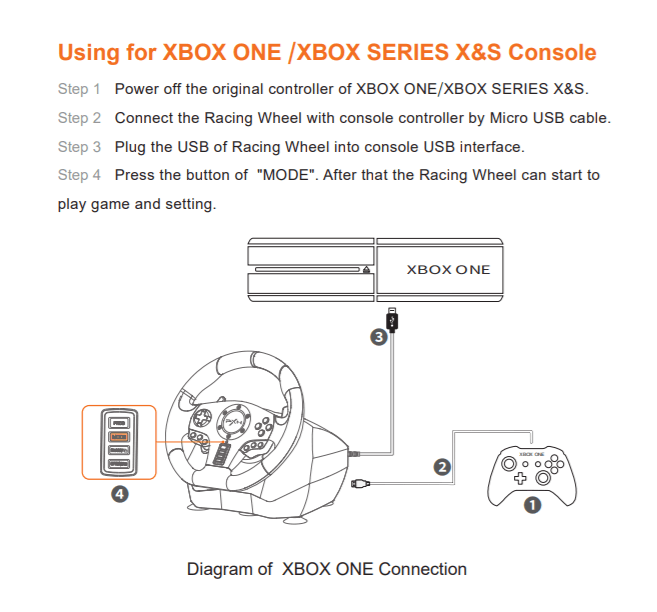
Credit: answers.microsoft.com
Use the test result to choose the next step
If the wheel fails the supported device test, focus on connection, mode and manufacturer-directed hardware troubleshooting. If inputs register correctly but one game does not respond, focus on compatibility and game mapping.
If only one accessory fails, document that input separately. Keep changes controlled and retain a working baseline whenever possible.
The objective is a verified connection and usable input mapping for the actual model, not a collection of resets borrowed from different PXN products.


Automotive reference information. Confirm specifications in the manual for your exact vehicle. Original replacement guides link to their research sources. About us