Update an OBD2 scanner only through the official process for its exact model and hardware revision. Some handheld tools use a computer updater, some adapters use a mobile application and some devices have no supported user-update route. There is no universal firmware file for all OBD2 scanners.
First identify what needs updating: the phone app, the adapter firmware, a scanner database or a licensed vehicle package. These are different layers.
Updating the tool is also different from programming a vehicle controller. Keep those tasks separate and never use an unrelated firmware file because the device has a similar name or case.
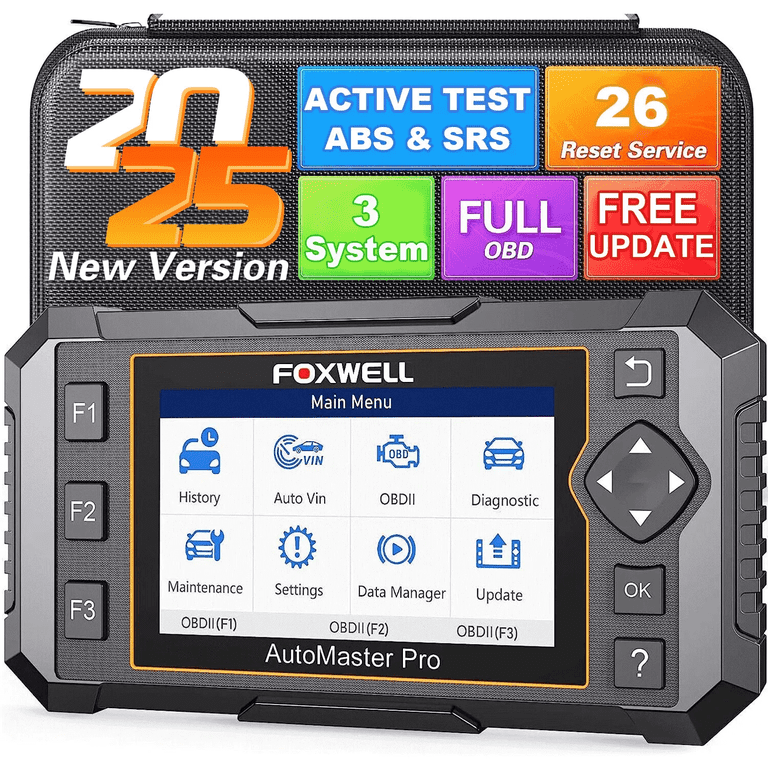
Credit: www.walmart.com
Identify the tool before downloading anything
Record the manufacturer, complete model name, hardware or tool ID where shown, and installed software versions. Photograph the information screen if useful. A model suffix can matter. If the label and software disagree, ask the manufacturer to identify the unit before proceeding. That prevents a compatibility problem from becoming a recovery problem caused by the wrong package.
Check whether updates are supported
Consult the manufacturer's current support page for that device. Innova’s update list distinguishes models and, where relevant, tool IDs. Absence of a new package can mean the tool is current, unsupported or requires another route; do not guess which. Obtain clarification before assuming that a file for the nearest model will work.
Define the reason for the update
A release may address decoding, coverage, stability or another documented issue. Read the available notes and compare them with your need. An update cannot repair a broken cable or missing vehicle power, and it should not be assumed to add hardware-dependent functions. Keep the original problem description so you can verify whether the change actually helped.

Credit: www.amazon.com
Prepare before starting the transfer
Allow enough uninterrupted time and gather the exact instructions. Save reports, recordings and settings where the tool supports export. Note any account or license requirements through the official process. Do not start immediately before a required diagnostic appointment if recovery support would be unavailable should the update fail.
Use the specified computer, phone and cable
Check the currently supported operating system and connection method. A cable that charges a device may not carry data. Innova’s firmware instructions specifically distinguish charge-only USB cables from data cables when explaining a disconnected updater. That is a concrete reason to verify the lead before blaming the scanner.
Maintain the required power arrangement
Follow the updater's instructions for power and connection. A computer should not enter sleep unexpectedly during a transfer. If the documented route uses vehicle power, follow its vehicle-state requirements and suitable supply guidance. Do not improvise an external supply or attach both vehicle and computer power unless the exact instructions permit that configuration.
Find the correct official distribution route
Start from the manufacturer's known support site rather than a random download advertisement. Foxwell’s support page lists utilities by model, showing why one brand can have several distinct update packages. The correct updater is part of the product-specific procedure, not a generic OBD utility to be substituted freely.
Verify the source of the download
Check the page identity, product label and supported revision before installing. Use links provided by the manufacturer. Avoid files distributed through unsolicited messages or unofficial bundles that promise additional vehicle access. If browser or security software reports a problem, investigate through official support rather than automatically disabling protections to force installation.
Compare the offered version correctly
A version number should be compared within the same product and software component. Firmware, database and bootloader versions may be separate fields. Do not assume a higher-looking number from another tool is newer for yours. Keep the before-update values so the final verification can establish exactly what changed.
Connect only as instructed for the update
The update connection may differ from the normal vehicle-reading connection. Some tools use USB to a computer; other adapters use an app. OBDLink’s firmware guide lists different supported methods for its models. Use the appropriate route for the exact device rather than applying one adapter's procedure to the whole range.
Confirm a data-capable link
If the updater cannot see the tool, inspect the documented cable and port arrangement. A powered screen is not proof of a working data path. Use supported substitutions only, such as a known data cable appropriate to the device. Do not repeatedly reconnect while an actual transfer is underway just because the connection was initially slow.
Install drivers only when required
Use the manufacturer-supplied driver or supported operating-system process. Do not install a collection of unrelated serial drivers in the hope that one will work.
Record the computer's detection result and the updater message. That evidence helps support distinguish a host setup problem from a device or firmware issue.
Start only after the updater identifies the device
Confirm that the displayed model matches the equipment. Read any notices about data, licenses or required versions. Cancel if the identification is wrong or ambiguous. A transfer should begin because the supported updater has recognized an eligible device, not because a manually selected file seems plausible.
Use the documented application
Open the official updater and follow its instructions for device detection and available updates. Do not confuse a paid vehicle-software renewal with a basic firmware release.
If an account is required, use your legitimate account through the official interface. Never send passwords or security tokens to a seller in a public chat.
Let the transfer finish without unnecessary interruption
Read the progress and completion messages. Keep the connection stable.
Do not unplug the tool merely because progress pauses briefly. Do not close the updater to free the computer for another task.
If the manufacturer's documented time or behavior is exceeded, preserve the screen and seek the specified recovery guidance rather than inventing a restart sequence.
Verify completion before returning to vehicle work
A completed download is not always the same as completed installation. Follow any documented restart or finalization step. Then read the device information and compare the installed version with the expected release. Keep the completion record and any important release notes with the tool's maintenance history.
Check the actual version fields
Record the fields that changed and those that did not. If the updater says the device is current but the number looks unfamiliar, compare the correct model and component rather than repeatedly reinstalling. A database version and a firmware version may legitimately differ. Ask support if the official information does not resolve the discrepancy.
Perform a limited supported function check
After the update, confirm normal startup and the relevant read-only function using the tool's standard procedure. Preserve the test result. Do not validate a firmware installation by experimenting with programming, active controls or unrelated service resets. If the original issue concerned one supported data item, check that item under comparable conditions.
Troubleshoot using the stage of failure
A download failure, host detection failure, interrupted transfer and missing post-update feature are different problems. Note when the failure occurred and copy the exact message. Include model, version, updater and operating-system details when seeking support. This is more useful than describing the entire event as the scanner stopped working.
Resolve detection problems before retrying installation
Check the supported cable, host port and application version. Confirm that another application is not occupying the interface if the manufacturer identifies that possibility. Use only the official detection steps. Do not attempt to flash firmware until the updater recognizes the correct device reliably.
Use official recovery instructions for an interrupted update
Do not assume a failed update permanently ruined the device, but do not apply a generic recovery trick either. OBDLink, for example, publishes model-specific retry guidance. Follow the procedure for your actual hardware and failure state. Preserve the error history before resets, and contact support when the documented route does not restore normal operation.
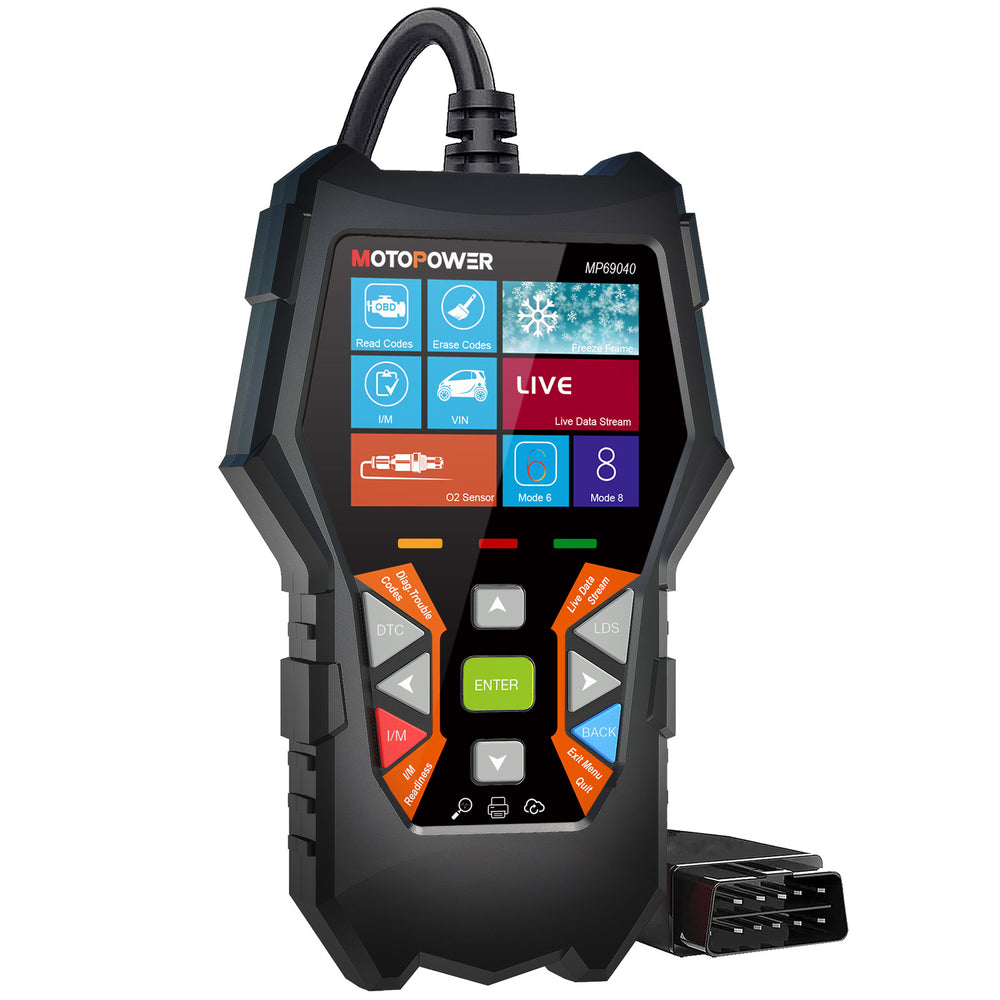
Credit: motopowers.com
Keep future software maintenance manageable
Maintain a small record of tool identity, installed versions, update date and any observed change. Store exported reports separately where practical. This helps distinguish a later vehicle issue from a change in the diagnostic setup. It also makes support more efficient if a particular feature behaves differently after maintenance.
Check for updates for a reason
Review official notices periodically or when a documented compatibility issue arises. Do not assume that frequent reinstalling improves reliability. An older tool may remain useful within its supported role even if updates have ended. If its coverage no longer meets the task, evaluate replacement based on the actual requirement rather than chasing unofficial firmware.
Protect the physical equipment too
A correct software version cannot compensate for a strained lead, damaged connector or moisture exposure. Store the device and cable according to the manual and inspect them before use. Keep the matching documentation available so another operator does not use the wrong updater or connection method during the next maintenance session.
Separate a successful update from a repaired vehicle
Updating the scanner changes the diagnostic equipment, not the underlying vehicle fault. If a warning remains, continue the proper diagnostic process with preserved evidence. The scanner troubleshooting guide separates power, communication and coverage problems.
The buying guide helps assess documented support when a tool no longer meets the job. A successful update is a verified installation for the exact device, followed by a controlled function check—not a promise of universal new capabilities.


Automotive reference information. Confirm specifications in the manual for your exact vehicle. Original replacement guides link to their research sources. About us